

Using chat
Start a conversation, understand streaming responses, track context usage, and work with suggested questions.
The chat interface is where you interact with your agent. Messages stream back in real time, and the agent draws on your knowledge base to answer questions.
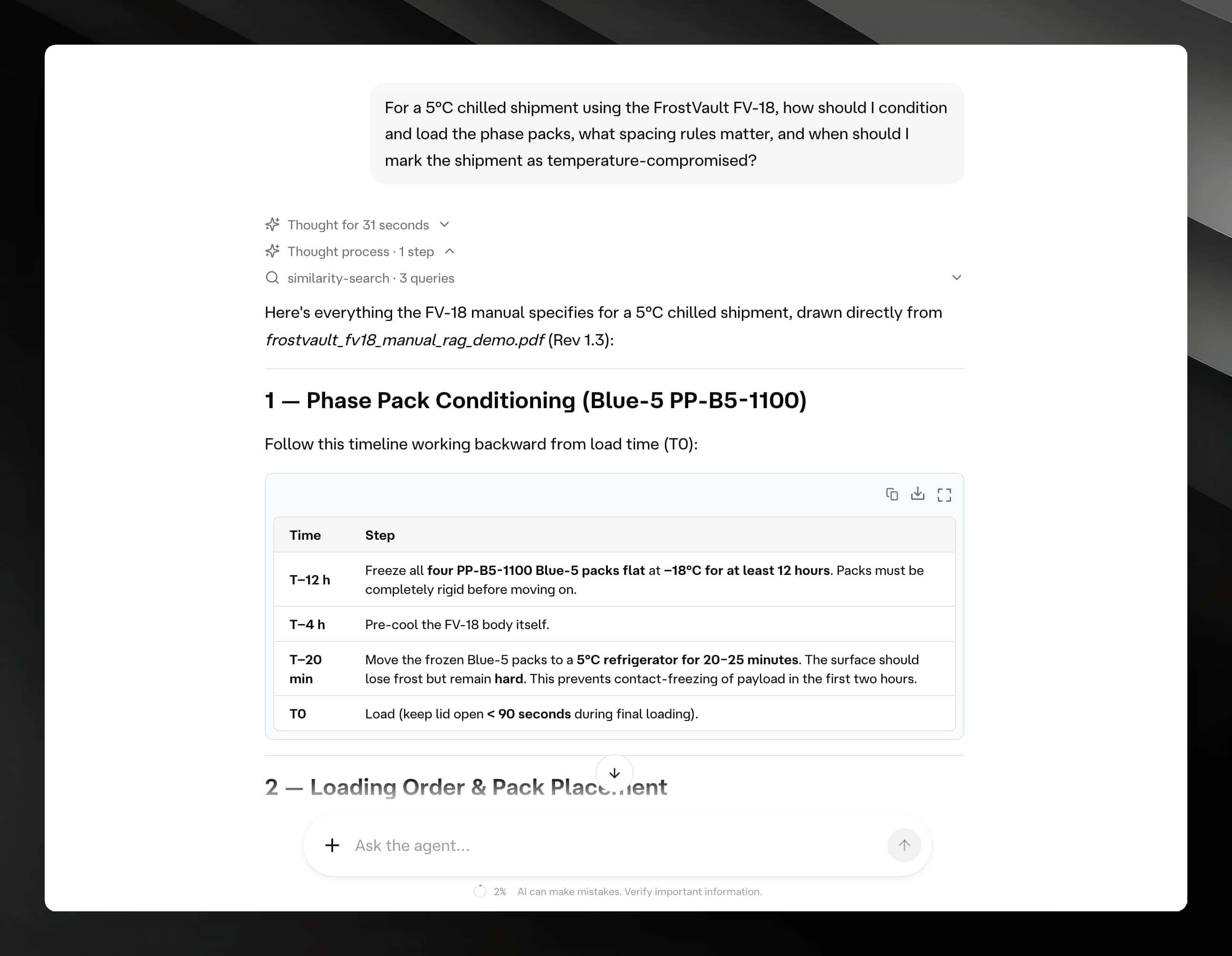
Starting a conversation
Open an agent and click Chats in the sidebar, then click New Chat. You can also start a new chat from the Start New Conversation button on the agent overview page.
A new chat opens with a welcome screen titled "How can I help you today?" and up to four suggested questions.
Suggested questions
The welcome screen shows suggestion cards sourced from the Suggested Questions you configure on the agent (up to four). If none have been set, the app shows a set of default prompts such as "What can you help me with?" and "How do I get started?".
Click any card to send that question immediately.
Typing a message
Click the Type a message… input at the bottom of the chat. Press Enter or click the send button to submit. The input is disabled while the agent is generating a reply.
Streaming responses
The agent streams its reply token-by-token as it generates. You will see the response appear progressively — there is no wait for the full answer before it starts displaying.
Attachments and voice input
Image attachments and voice input are planned features. Both controls are visible in the input bar but are currently disabled with a "Coming soon" tooltip.
The AI model
The agent uses the model you selected in its Profile tab. The model is fixed per agent — you set it in the Agent Profile, not in the chat interface itself.
Context usage meter
A small circular gauge in the chat input area shows how much of the model's context window the current conversation occupies.
| Colour | Meaning |
|---|---|
| Grey | Under 70 % used |
| Amber | 70–84 % used — approaching the limit |
| Red | 85 %+ used — older messages may be trimmed |
Conversation limits
Your plan includes a monthly limit on the number of conversations you can start. When you reach the limit, a Conversation Limit Reached dialog appears. You can continue using existing conversations, but you cannot start new ones until you upgrade your plan or the limit resets.
Citations
When an answer draws on your knowledge base, Mojar adds inline citation markers (such as [1]) and a View sources button beneath the message. Selecting it opens a panel showing the source documents and the exact passages used. See Citations for details.
Deleting a chat
Open the chat in the sidebar, then select Delete Chat from the chat options. You will be asked to confirm — deleted chats cannot be recovered.