

Profile and settings
Update your display name, avatar, language, and theme from the User Profile Settings page.
To open your profile settings, click your avatar or name in the sidebar and select Account, or navigate directly to User Profile Settings.
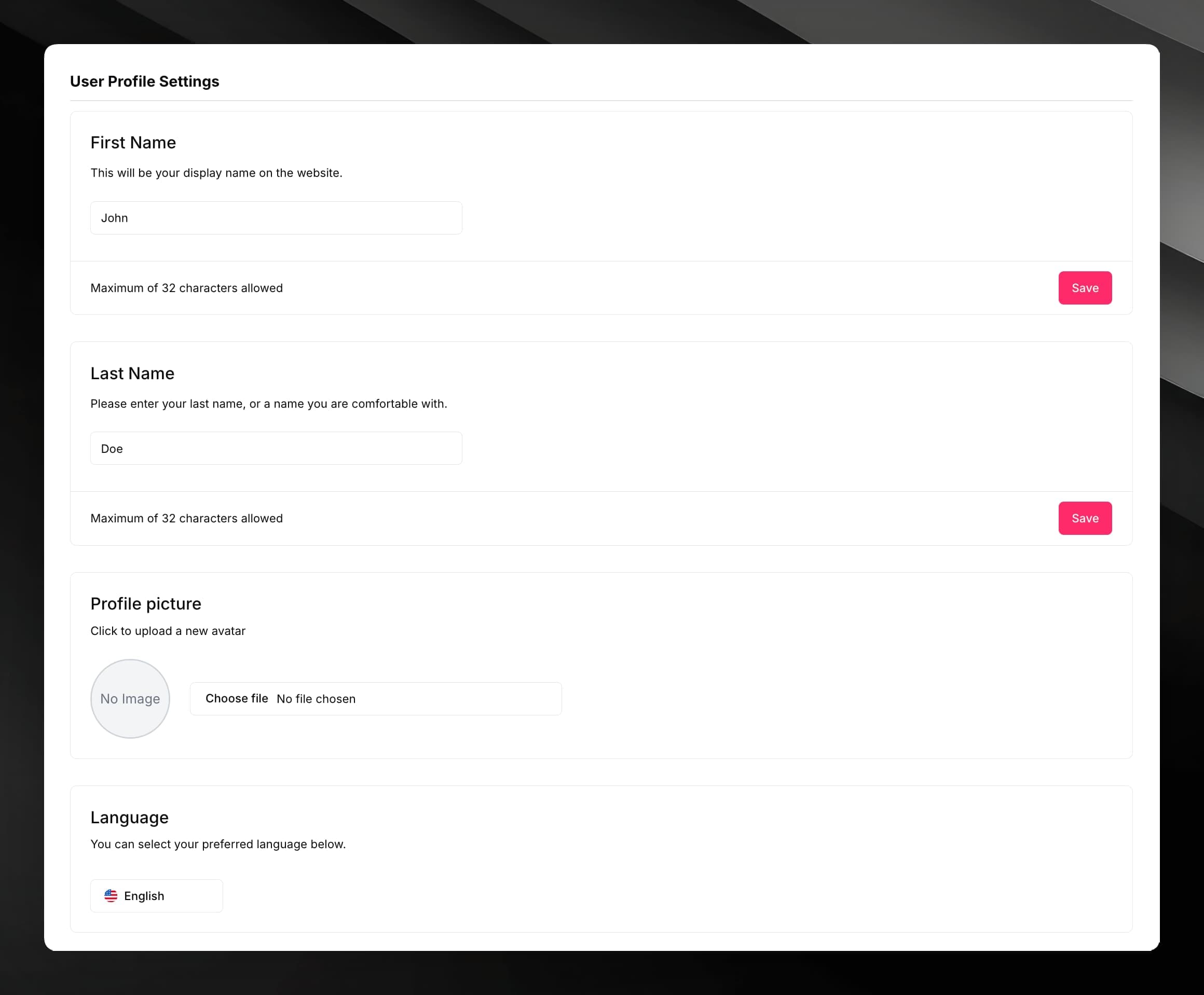
Name
The page shows two separate fields: First Name and Last Name. Each field saves independently — fill in the value and click Save next to that field. Names can be up to 32 characters.
Your display name appears across the app wherever Mojar shows your identity.
Profile picture
The Profile picture section shows your current avatar in a circular 96 × 96 preview. To change it:
If no image is set, the preview shows "No Image".
Language
The Language section (labelled "Language" with the sub-text "You can select your preferred language below") contains a dropdown. The available languages are:
- English
- 日本語 (Japanese)
- Français (French)
- Español (Spanish)
Selecting a language saves it to your profile and immediately reloads the app in the chosen locale.
Theme
The theme toggle is in the sidebar, not on the profile page. Click Theme mode in the sidebar to open a dropdown labelled Appearance. Choose one of:
- System — follows your OS dark/light setting
- Dark
- Light
The selected mode is applied instantly and persists across sessions.
Your Email address is shown read-only on the profile page. The sub-text reads "Your primary email (cannot be changed)". To use a different email address you would need to create a new account.