

Configuring an agent
Set the system-prompt mode, enable or disable skills, and control tool availability from the Configure tab.
The Configure tab is where you decide how your agent reasons and what it can do. Changes take effect on the next chat turn — no restart required.
Navigate to an agent and click Configure in the left sidebar.
Industry
The industry card shows the vertical you selected when you created the agent (for example, RFP Response). It also displays how many skills are currently enabled.
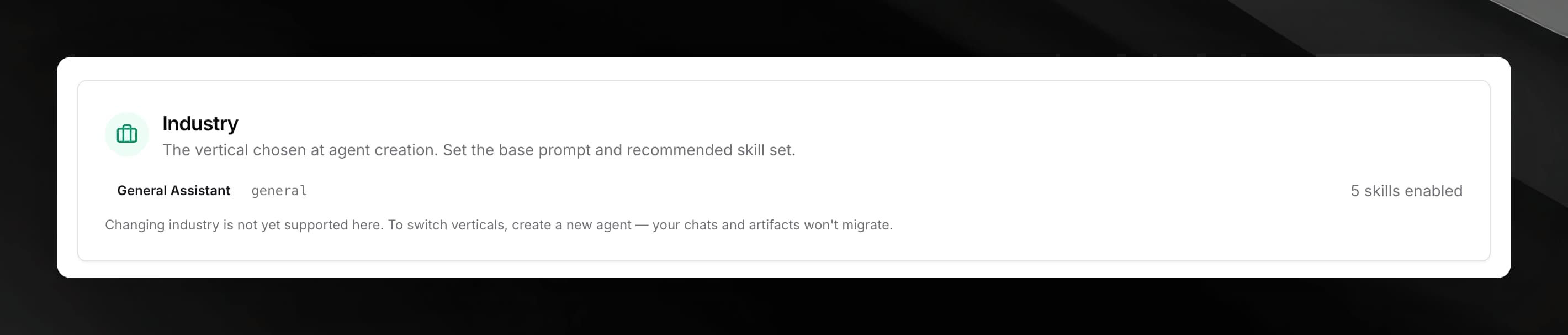
Changing industry is not supported from Configure. To switch verticals, create a new agent — your chats and documents will not migrate automatically.
System prompt mode
The System prompt mode card controls where the agent's system prompt comes from.
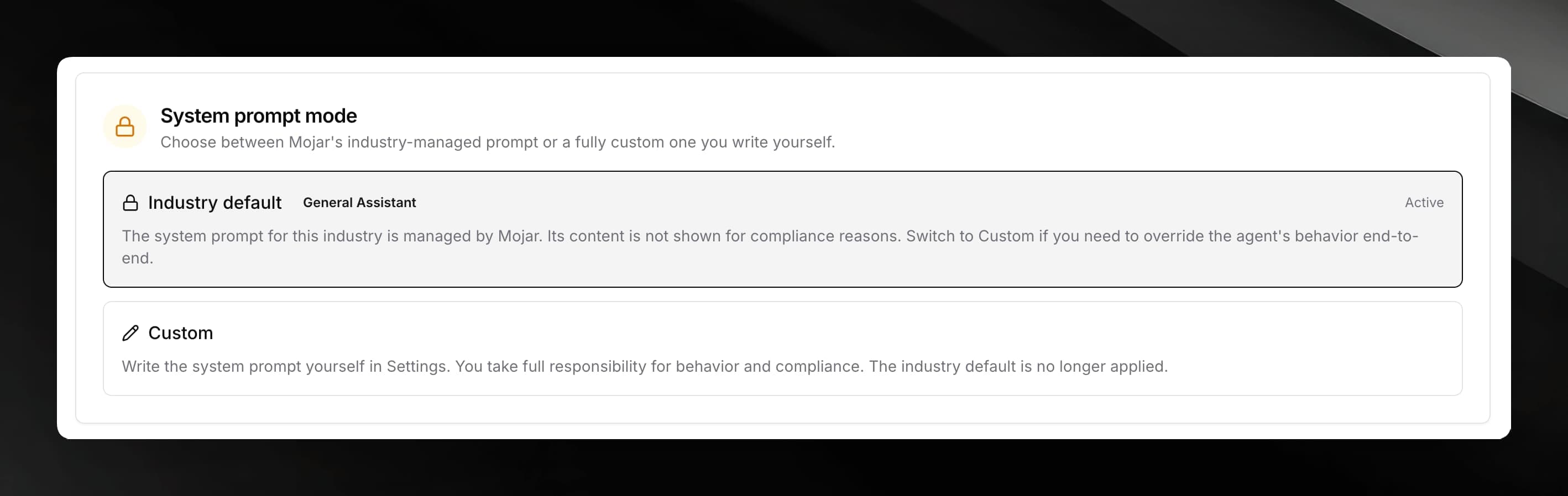
Industry default
The agent uses a system prompt maintained by Mojar for the selected industry. The prompt content is not shown for compliance reasons. This is the default for all new agents.
Custom
You write the system prompt yourself in Settings. The industry default is no longer applied, and you take full responsibility for behavior and compliance.
Switching to Custom opens a blank editor — Mojar does not pre-fill the editor with the industry default. Write your own prompt from scratch, or switch back to Industry default if you change your mind.
If you switch to Custom but have not yet written a prompt, a banner will remind you to open Settings to add one. Until you do, the agent runs with no system prompt.
Skills
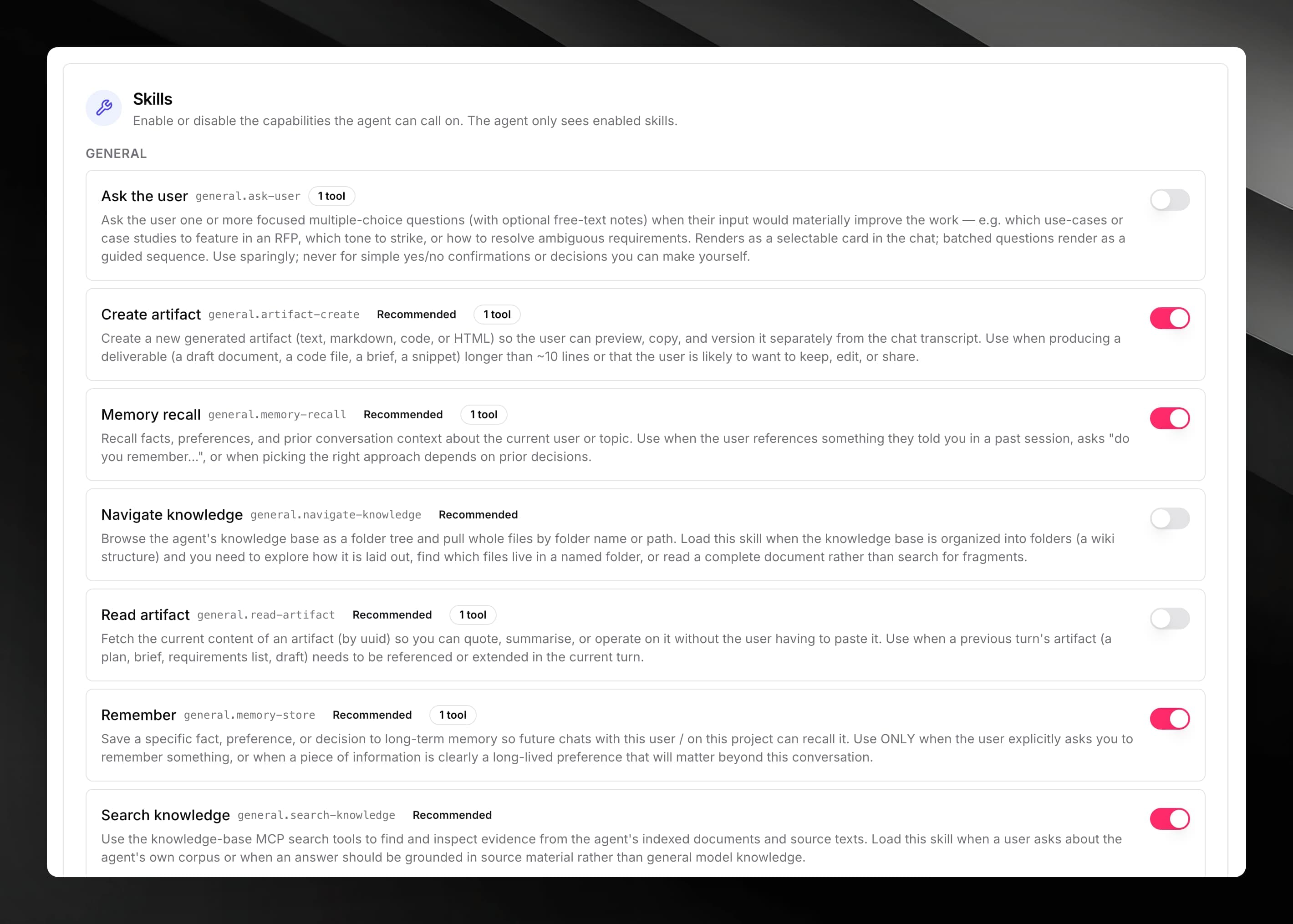
The Skills card lists every capability the agent can call on. Skills are grouped into three categories:
| Category | What it contains |
|---|---|
| General | Capabilities available to all agents regardless of industry |
| Industry-specific | Skills recommended or tailored for the agent's vertical |
| System | Internal capabilities managed by the platform |
For each skill you can see:
- Label and internal ID
- Recommended badge — shown when the skill is in the recommended set for the agent's industry
- Tool count badge — the number of tools the skill exposes
- Enabled toggle — turn the skill on or off; the agent only sees enabled skills
Pinning a skill to chat
Industry-specific skills that are enabled show an additional Show in chat toggle. When pinned, the skill appears as a quick-access button in the chat input toolbar.
Tone of voice
The Tone of voice card is also part of Configure. See Tone of voice for full details.
Tool matrix
Below the skill list, a tool matrix shows which individual tools are exposed through the currently enabled skills. This is read-only in the Configure tab — tool availability follows from which skills you enable.