

Creating an agent
Create an agent, name it, choose an industry vertical, and reach the agent dashboard.
An agent is the core object in Mojar. It holds your knowledge base, configuration, and chat history. Creating one takes under a minute.
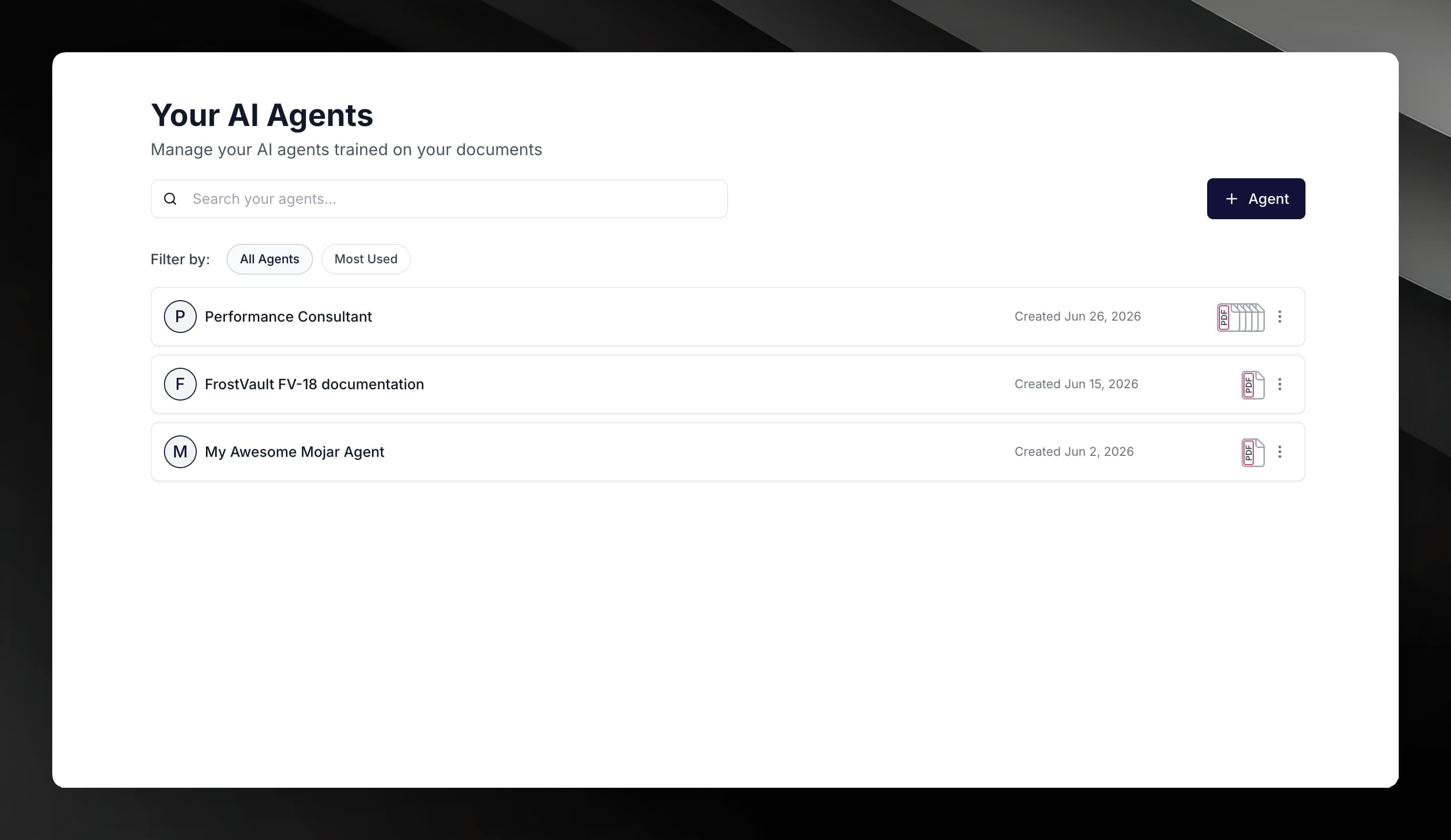
Open the Agents dashboard
Sign in and you land on the Your AI Agents page. This lists every agent you own and shows a count of their documents.
Create a new agent
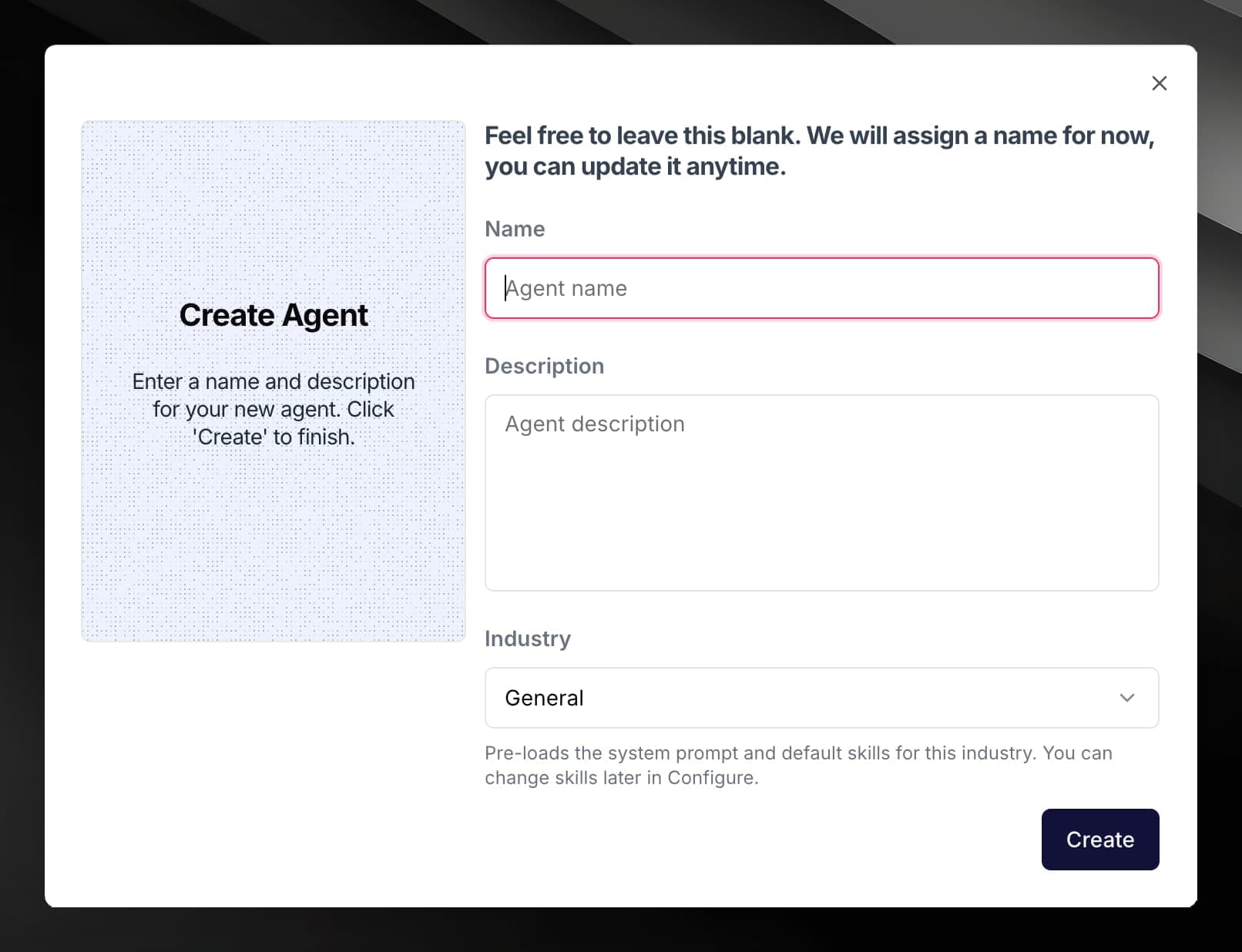
Fields
Name
The agent's display name. You can leave this blank — Mojar assigns a placeholder and you can update it any time from the agent's Profile section.
Description
A short summary of what the agent does. Visible only to you in the dashboard. Click the description area on the Profile card to edit it inline after creation.
Industry
Selects a pre-built prompt and default skill set tuned to that use case.
| Value | Label |
|---|---|
general | General |
chatbot | Chatbot |
rfp-response | RFP Response |
healthcare | Healthcare |
The industry pre-loads the system prompt and default skills for that use case. You can change which skills are enabled later from Configure, but switching industry is not supported after creation — if you need a different vertical, create a new agent.
The industry default prompt is managed by Mojar and is not shown to you. If you want full control over the system prompt, switch to Custom mode in Configure after the agent is created.
After creation
You land on the agent's overview page. From here you can:
- Upload documents to the Knowledge Base — the agent becomes public-ready only after at least one document is fully processed.
- Go to Configure to adjust the system prompt mode, skills, and tone of voice.
- Open Chats to start a conversation with your agent.