

Uploading documents
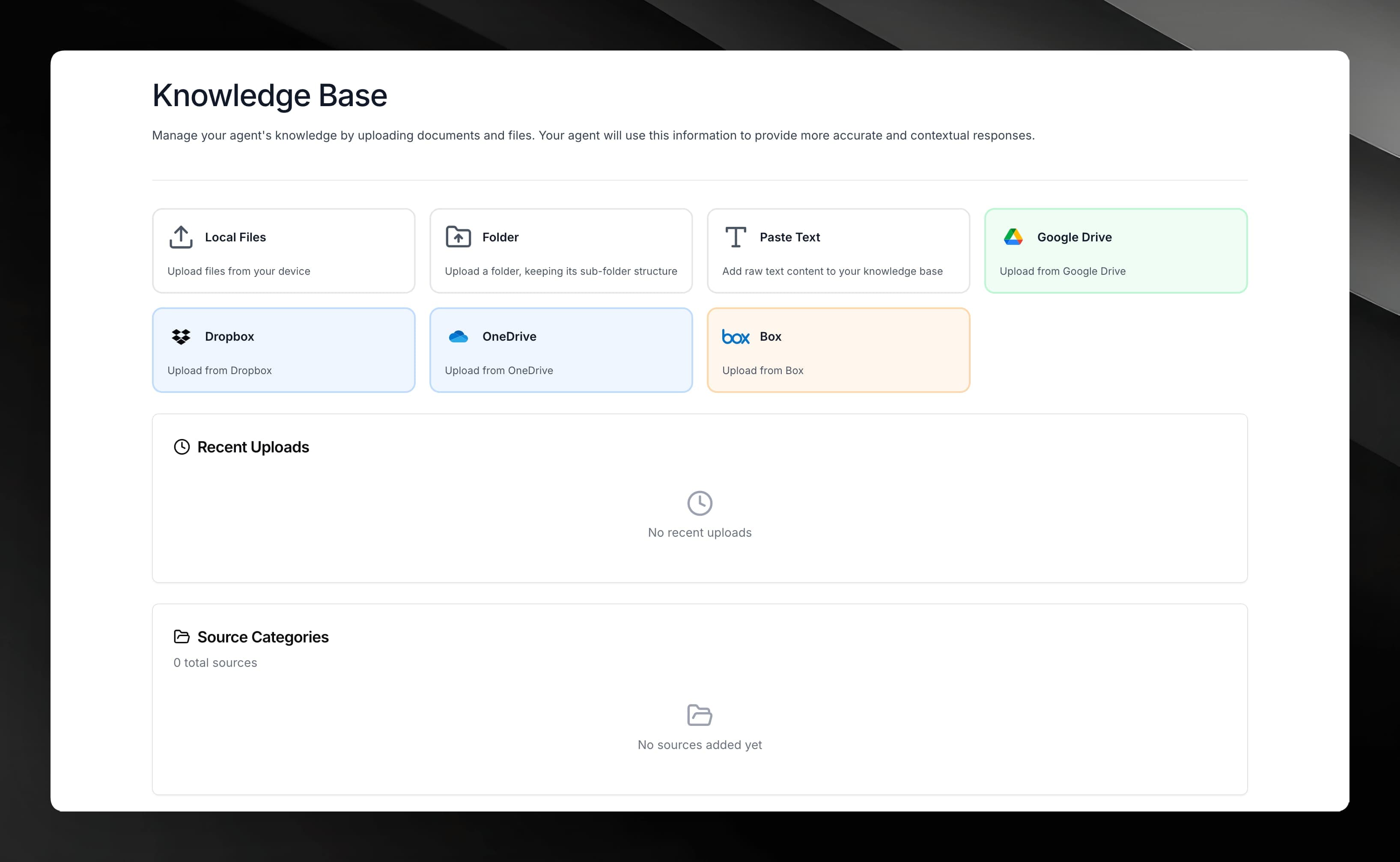
Add PDFs, Office files, and text to an agent's knowledge base so it can answer questions from your content.
Every agent has its own knowledge base. When you upload documents, the agent learns from your content and can cite specific passages in its answers.
Supported file types
You can upload the following file formats:
| Category | Formats |
|---|---|
| Documents | PDF, DOCX, DOC, RTF, ODT |
| Presentations | PPTX, PPT, ODP |
| Text | TXT, HTML, XML |
Spreadsheet formats (XLSX, XLS, CSV) are not currently supported. Convert to PDF or plain text before uploading.
Size and count limits
- Maximum file size: 50 MB per file.
- Maximum documents per agent: depends on your plan. When the limit is reached, the Upload Documents button shows a plan-upgrade prompt.
How to upload
Open your agent and select Knowledge Base from the agent sidebar.
Click Upload Documents. A file picker opens. You can select one or multiple files at once.
Confirm your selection. Each file appears in the document list with a status indicator while it processes.
After uploading, Mojar queues each file for processing — text extraction, chunking, and embedding generation. See how processing works for what happens next.
Uploading completes quickly, but the agent cannot answer questions from a document until its status shows Completed. Large or image-heavy files may take a few minutes.
Uploading multiple files
Select multiple files in the file picker in one go. Each file is uploaded and processed independently, so a failure in one file does not affect the others.