

Cloud imports
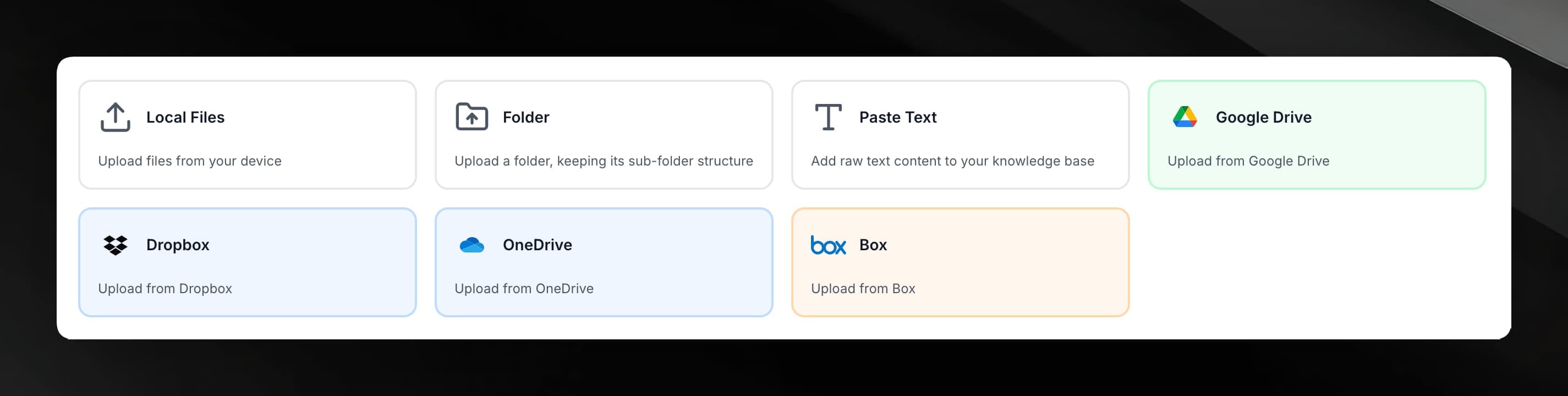
Import files directly from Google Drive, Dropbox, OneDrive, or Box into your agent's knowledge base.
Instead of downloading files to your computer and re-uploading them, you can import documents directly from your cloud storage accounts.
Supported providers
| Provider | Notes |
|---|---|
| Google Drive | Uses the Google Drive Picker — no separate OAuth consent required |
| Dropbox | Connect with your Dropbox account credentials |
| OneDrive | Connect with your Microsoft account credentials |
| Box | Connect with your Box account credentials |
How to import from cloud storage
Open your agent and select Knowledge Base from the agent sidebar.
Click the cloud-import option and choose a provider (Google Drive, Dropbox, OneDrive, or Box).
Authenticate with the provider when prompted. You only need to do this once per provider.
Browse or search your files in the picker that opens. Select the files you want to import.
Confirm your selection. Mojar transfers the files directly from the provider's storage into your agent's knowledge base.
After import, the files enter the same processing pipeline as locally uploaded documents. See how processing works for details.
The same file-type and size limits that apply to direct uploads also apply to cloud imports. Files that exceed 50 MB or use an unsupported format will not be imported.
Supported file types
Cloud-imported files must be in a supported format. PDFs, Word documents, PowerPoint presentations, and plain-text files from any of the providers above are all supported.