

Embed widget overview
Add a Mojar chat widget to any webpage so visitors can chat with your agent without leaving your site.
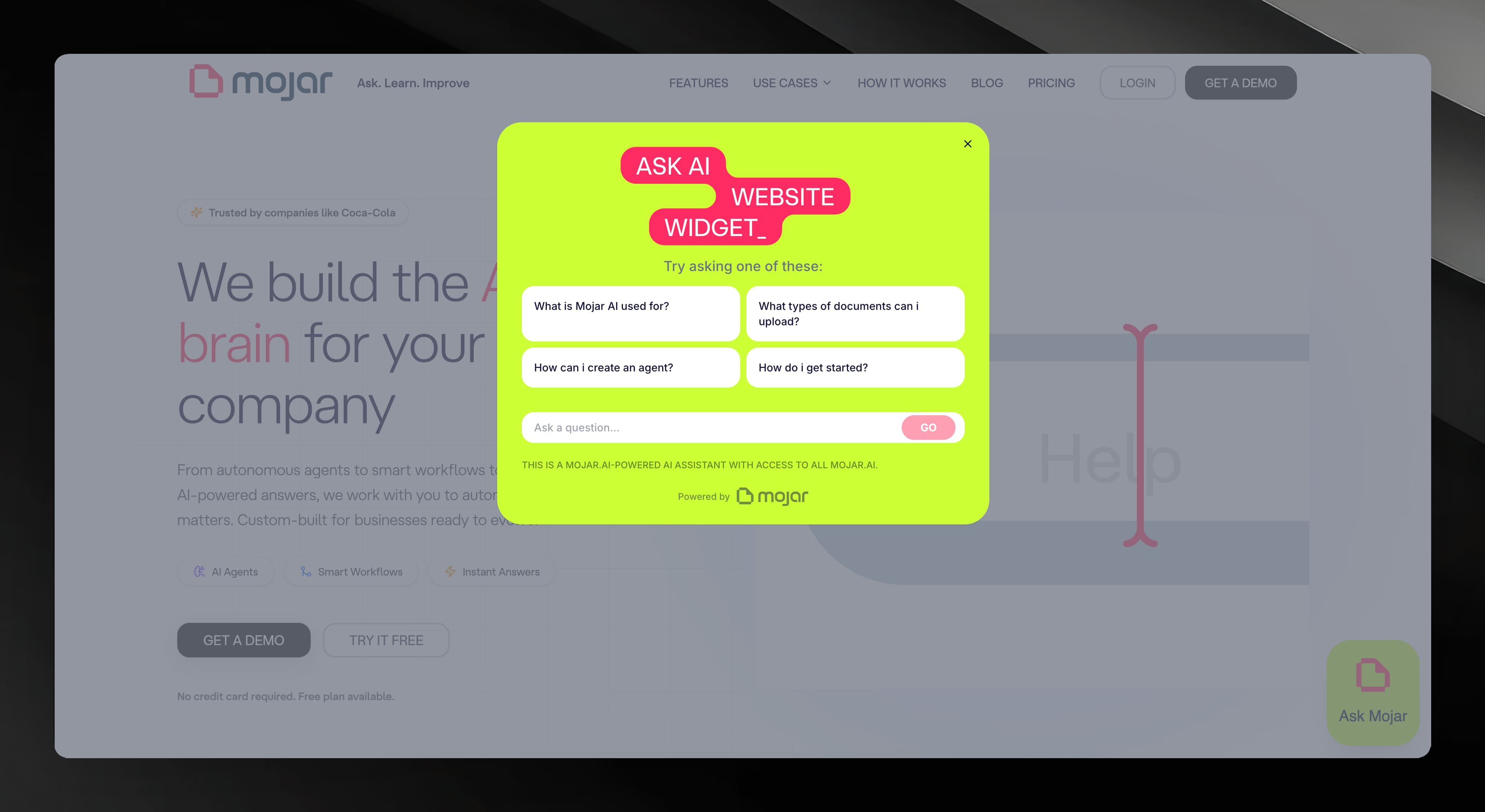
The embed widget lets you place a floating chat button on any webpage. When a visitor clicks it, a modal opens and they can ask questions directly to your agent — no account needed. Answers can include citations drawn from your agent's knowledge base.
Before you start
Your agent must be set to Public before embedding is available. Private agents cannot be embedded. If your agent is still private, open the agent's settings and toggle its visibility to Public first.
You also need at least one processed document in the agent's knowledge base. The embed toggle is disabled until a document has finished processing.
See Visibility and sharing for instructions on making an agent public.
Enable the embed feature
Open your agent in the dashboard and select Embed from the sidebar.
On the Website Embed Feature card, toggle the switch from Inactive to Active.
If your agent is not yet public, a prompt appears with a Make agent Public link. Click it before toggling.
Once active, the Manage Domains section expands below the toggle.
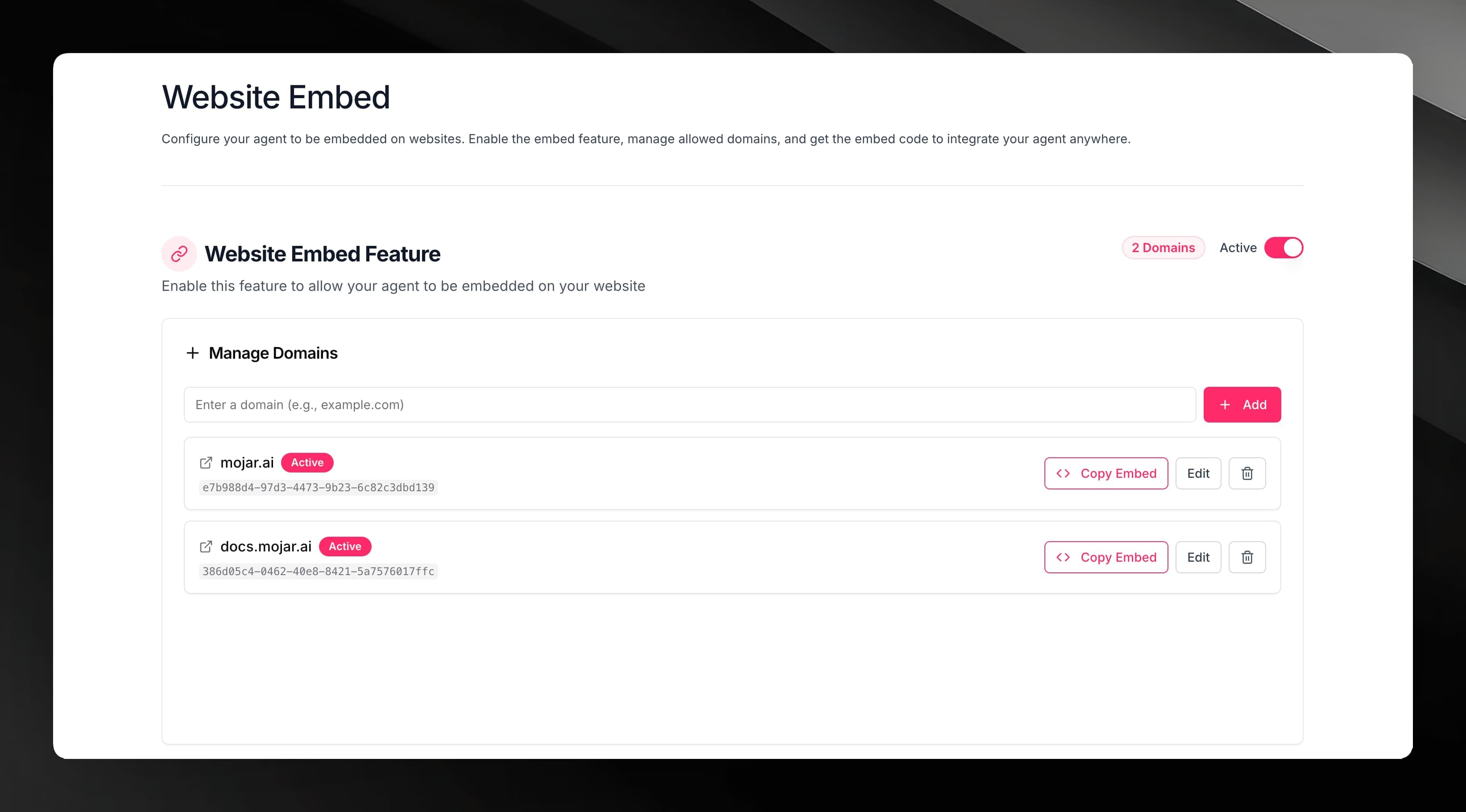
Disabling the toggle (setting back to Inactive) turns off the embed feature for all domains. Visitors on your site will no longer see the chat widget until you re-enable it.
Copy the embed snippet
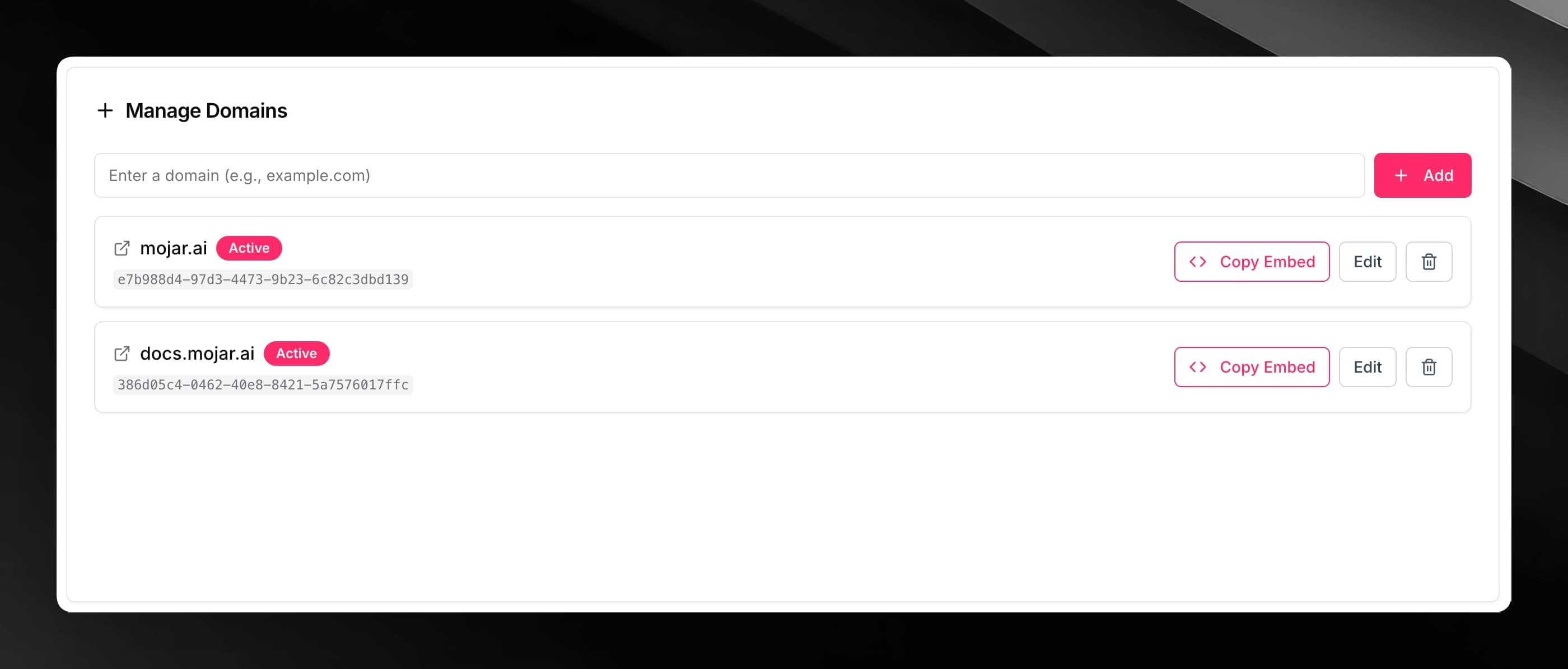
Each domain you add gets its own embed snippet. See Domains for how to add a domain.
Once at least one domain is added:
In the Manage Domains list, find the domain you want.
Click Copy Embed next to the domain name.
Paste the copied <script> tag into your webpage's HTML, just before the closing </body> tag.
The snippet looks like this:
<script
  src="https://app.mojar.ai/widget-mojar-loader.js"
  data-agentid="YOUR_AGENT_ID"
  data-domainuuid="YOUR_DOMAIN_UUID"
  data-button-position="bottom-left"
  data-button-text="Ask AI"
  data-hide-button="false"
></script>
For a full list of customization options, see Widget configuration.
How the widget behaves
Desktop — the widget opens as a centered modal overlay (up to 900 px wide, 80 vh tall) with a semi-transparent backdrop. Clicking outside the modal closes it.
Mobile (≤ 768 px) — by default the modal expands to fill the full screen. You can force full-screen mode on all viewports using data-mobileFullscreen="true".
Guest chat — visitors chat as anonymous guests. No sign-in is required. Sessions are token-based and refresh automatically every 25 minutes.
Citations — if your agent's knowledge base has processed documents, the widget can show source citations inline in the response. Visitors can tap a citation to see the source excerpt.
The JavaScript API
After the script loads, window.MojarAIWidget (also window.MojarAIWidgetV2) is available for programmatic control:
window.MojarAIWidget.open();        // open the chat modal
window.MojarAIWidget.close();       // close the chat modal
window.MojarAIWidget.toggle();      // toggle open/closed
window.MojarAIWidget.destroy();     // remove widget entirely from the page
window.MojarAIWidget.reinitialize(); // re-validate and recreate the widget
Use destroy() before re-injecting the script with a different configuration.
To use your own button instead of the default floating button, set data-hide-button="true" and call window.MojarAIWidget.toggle() from your own click handler.