Quickstart
Create your first agent, add knowledge, and start chatting in five steps.
This guide walks you through creating an agent, uploading a document to its knowledge base, and having your first conversation — from a fresh account to your first answer.
Prerequisites
- A Mojar account. If you don't have one yet, sign up at mojar.ai.
- A document to upload (PDF, Word, text, or other supported format).
Steps
Sign in
Go to mojar.ai and choose Continue with Email or Continue with Google.
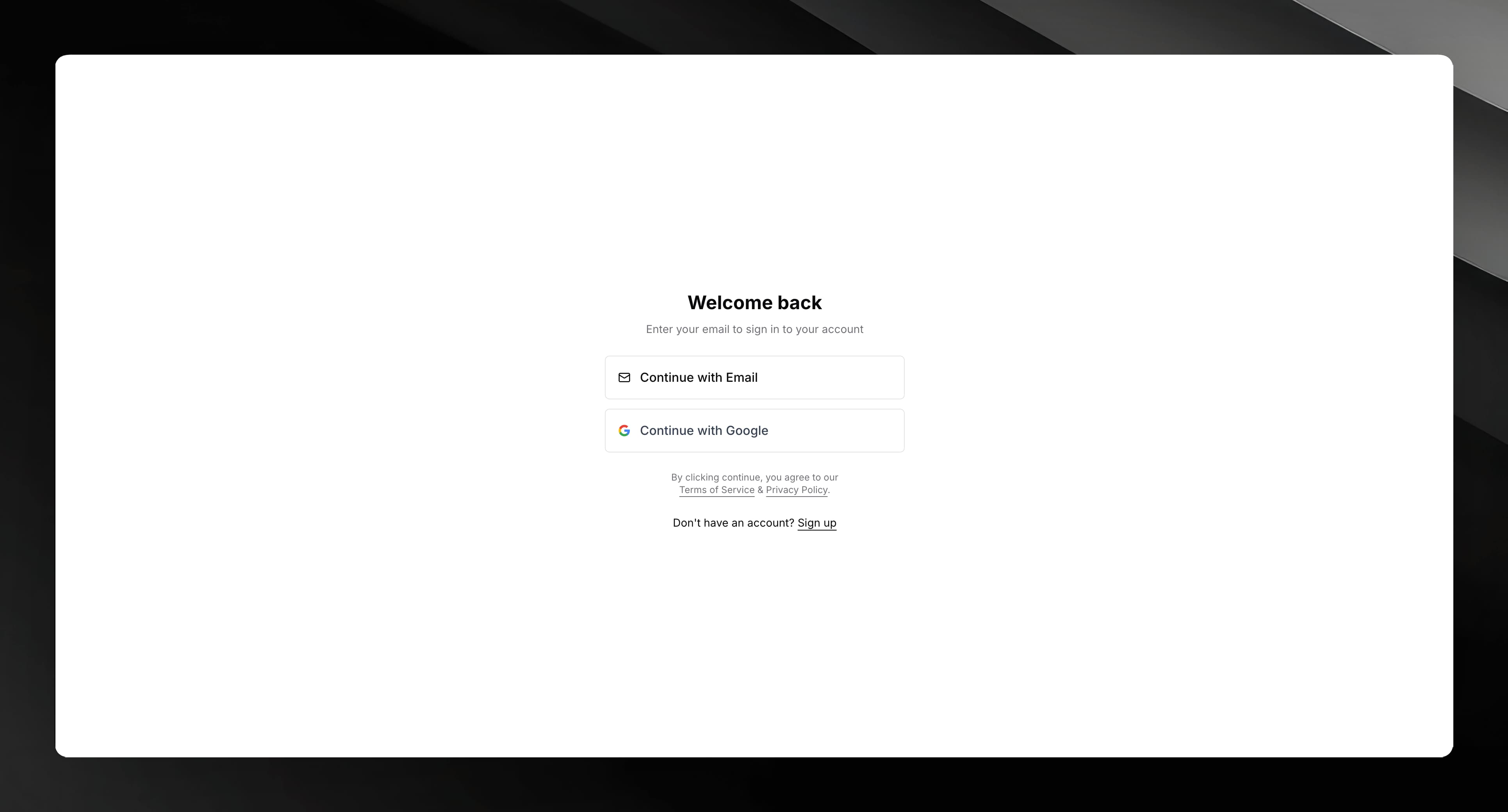
After signing in you land on the Dashboard, which lists all your agents.
Create an agent
On the Dashboard, click Create (the button in the top-right search bar area).
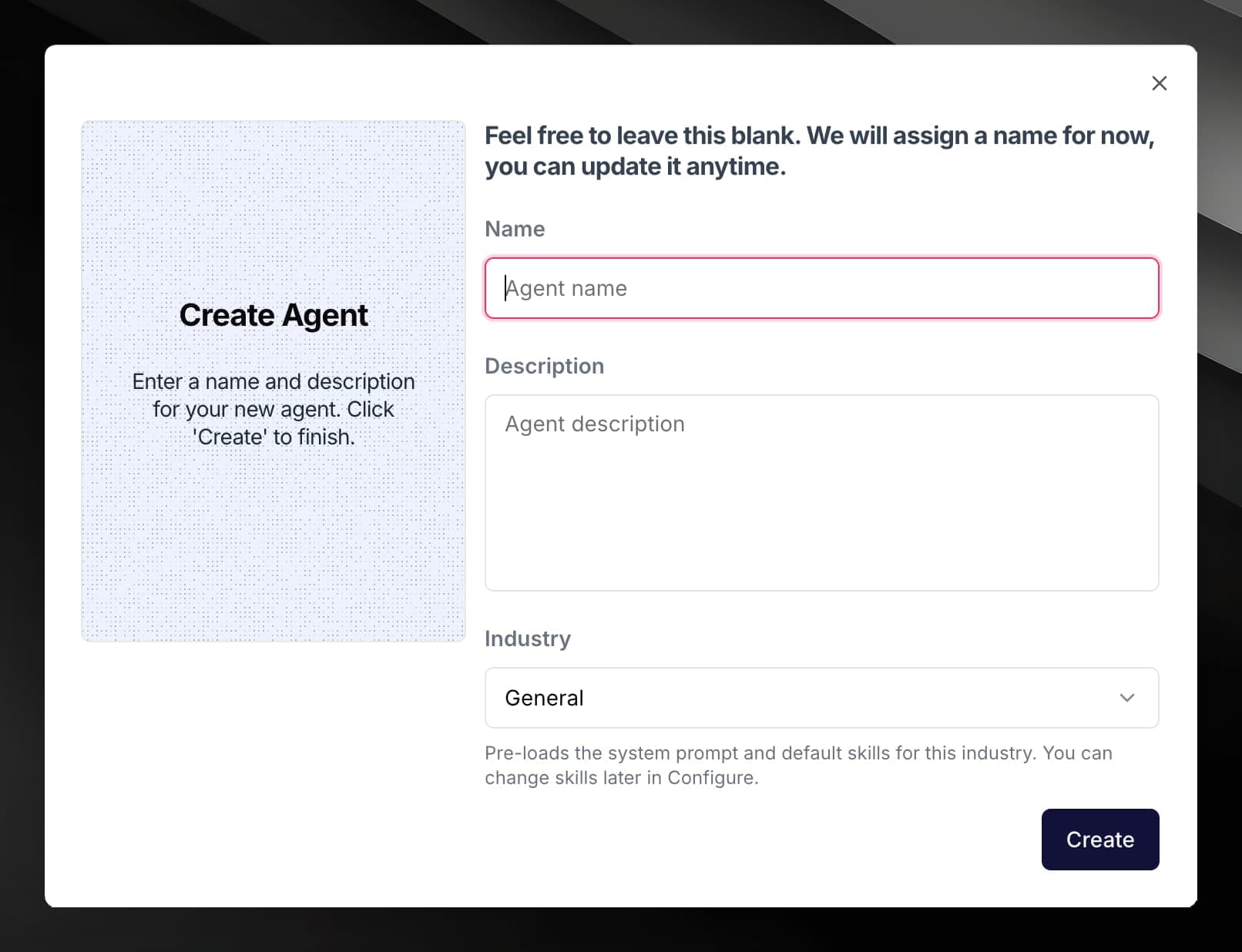
The Create Agent dialog opens. Fill in:
- Name — a short label for your agent (optional; you can rename it later).
- Description — a brief note on what this agent is for (optional).
- Industry — choose a vertical that matches your use case. This pre-loads a suitable system prompt and default skills. Options are General, Chatbot, RFP Response, and Healthcare.
Click Create. Mojar creates the agent and takes you straight to its agent page.
Upload a document to the knowledge base
Inside the agent page, open Knowledge Base from the left sidebar.
Click Upload Documents, then either:
- drag and drop files onto the upload area, or
- click Browse files and select them from your computer.
Supported file types include PDF (including scanned PDFs), Word documents, spreadsheets, presentations, plain text, and Markdown.
The maximum file size per upload is 50 MB.
Wait for processing to complete
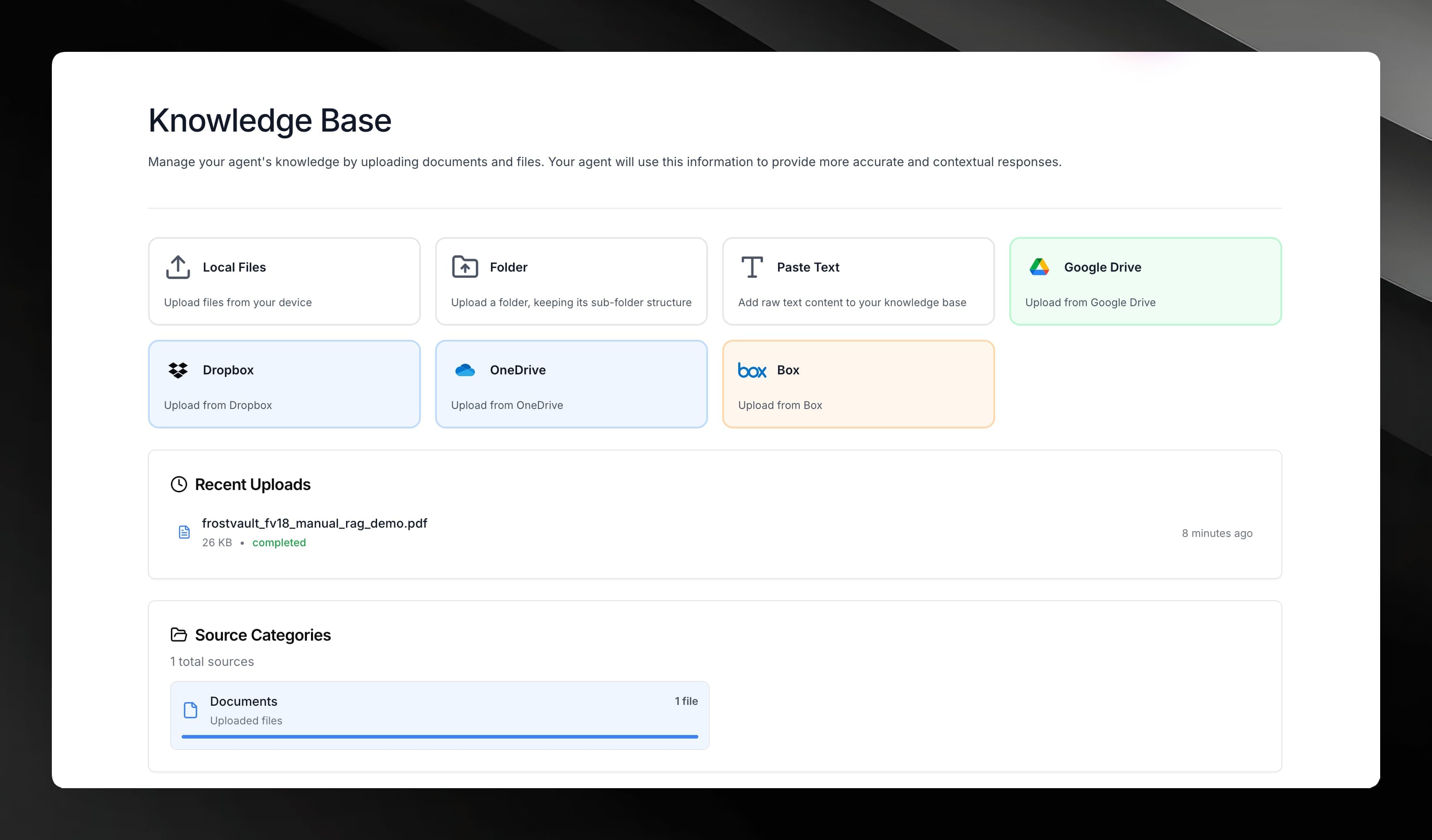
After uploading, each file shows its processing status in the document list. Mojar extracts text, chunks the content, and generates embeddings so the agent can search it.
Processing typically completes within a minute for most documents. The status updates automatically — you do not need to refresh the page.
Start a chat
Once at least one document has finished processing, open Chats from the left sidebar and click Start New Conversation.
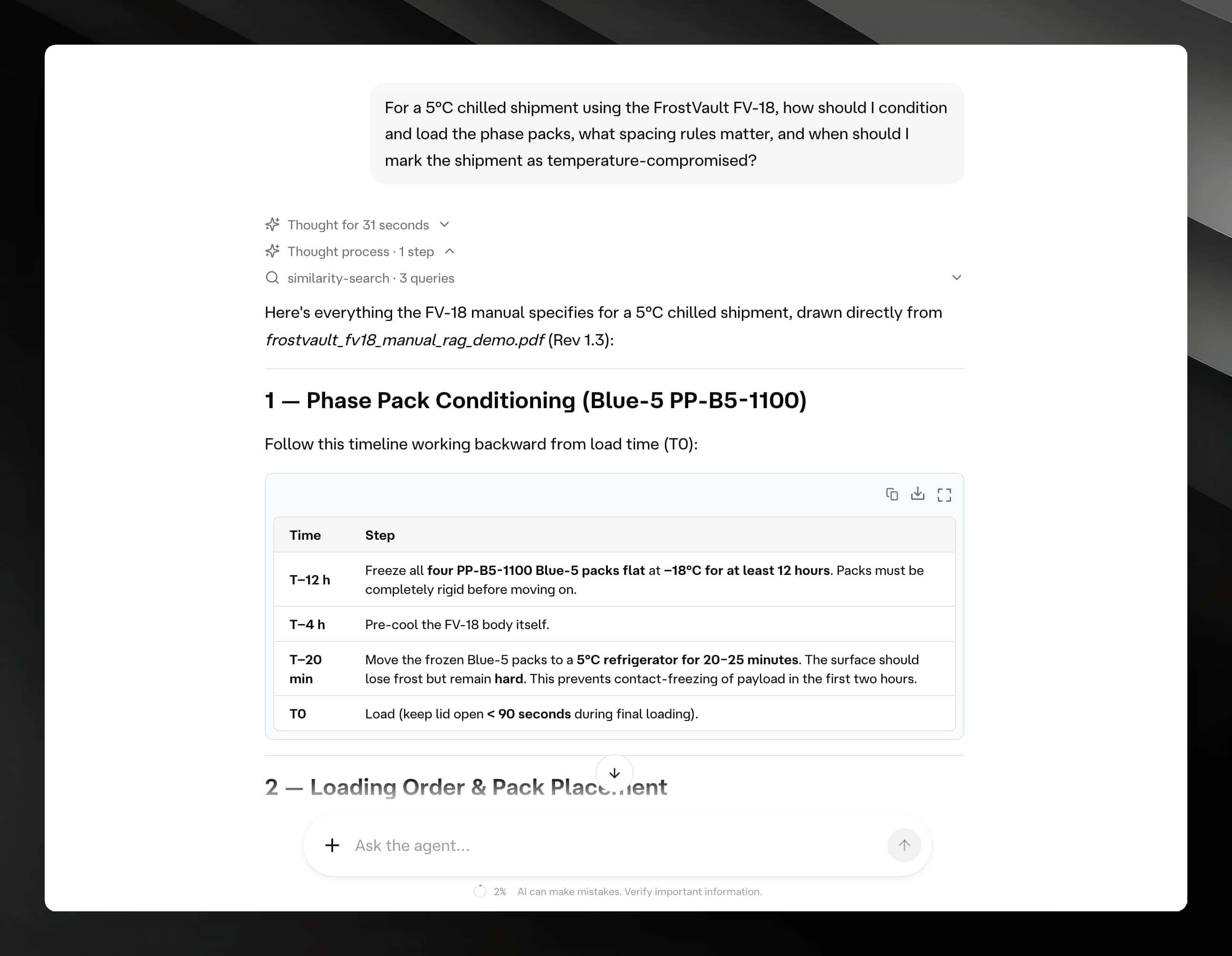
Type a question based on something in your document and send it. The agent searches your knowledge base and returns an answer grounded in the content you uploaded.