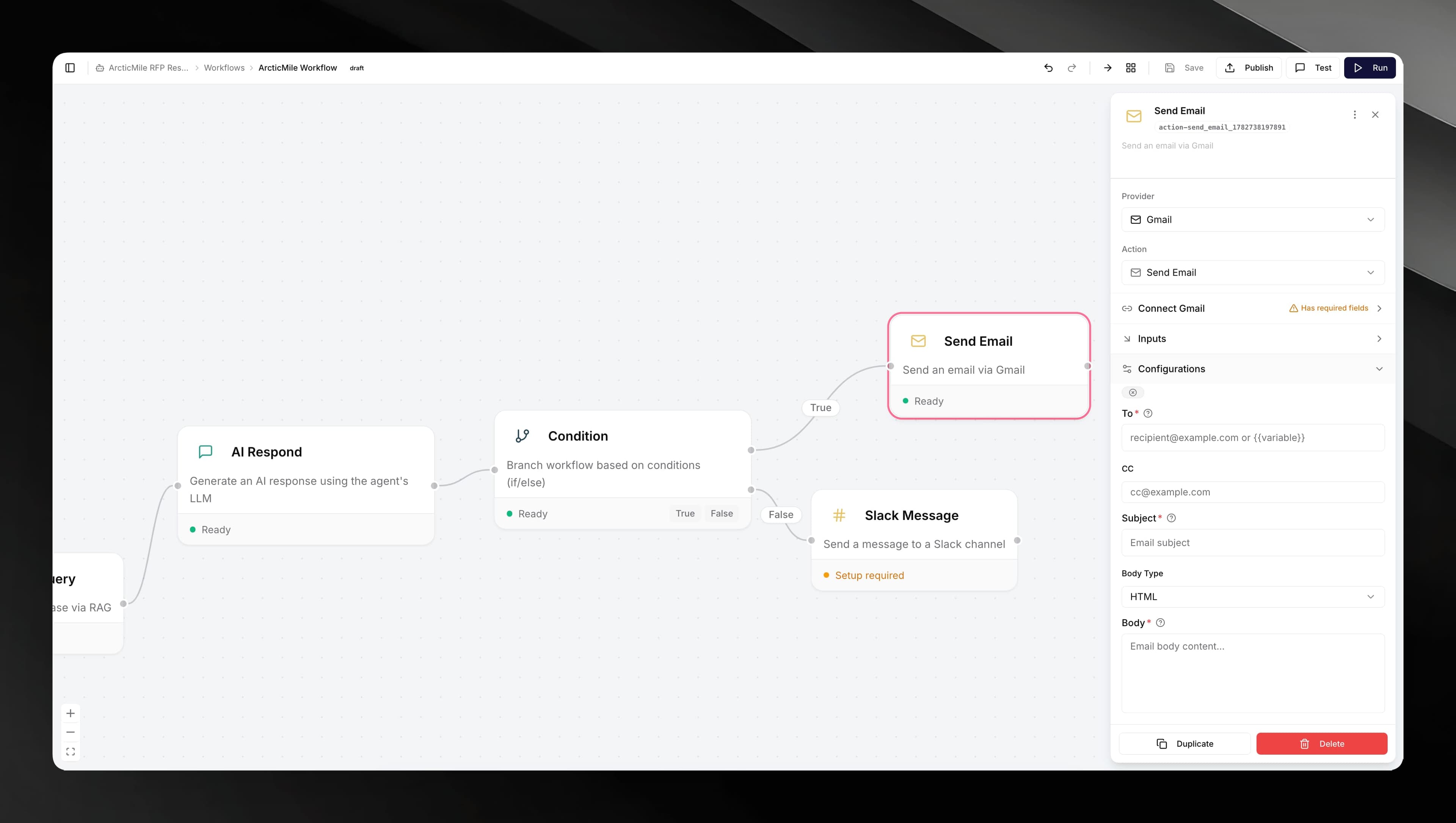
Connectors overview
Connect your agent's workflows to external systems — email, messaging, CRM, ticketing, IoT, and HTTP.
Connectors let your agent's workflows act on the outside world. When a workflow runs, it can send an email, post a Slack message, trigger an SMS, call a webhook, and more — each action is powered by a connector you configure once and reuse across workflows.
How connectors work
A connector pairs two things:
- Credentials — the API key, token, or OAuth grant that authorises Mojar to act on a service on your behalf. Credentials are stored encrypted and shared across your account.
- Workflow nodes — the steps inside a workflow that actually perform an action (for example, a Send Email node uses the Gmail connector).
When you add a connector, you enter the credentials for that service. Those credentials are then available to any workflow node that matches the connector type.
Managing connectors
You manage connectors from the Integrations tab inside each agent.
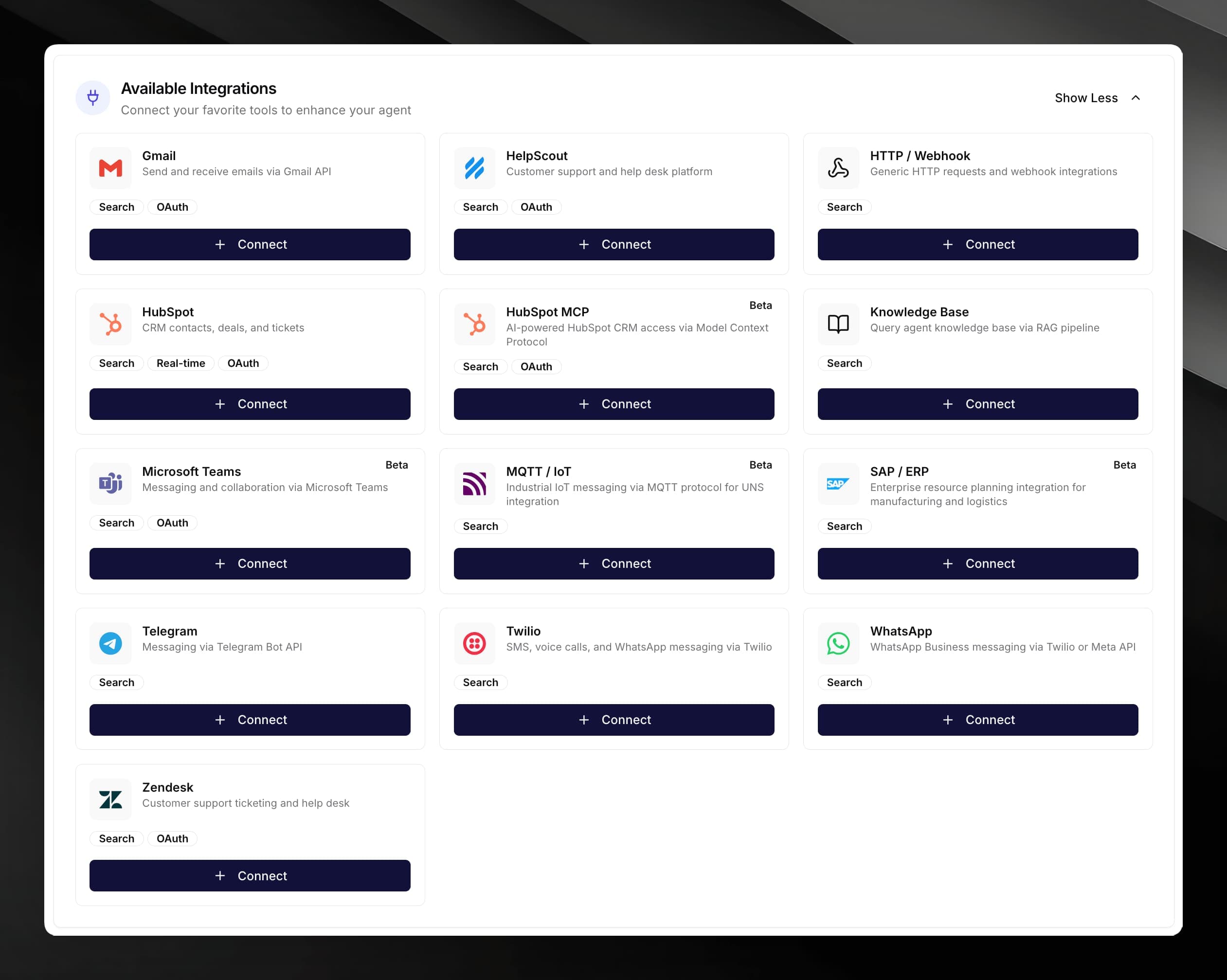
Add a new connector
Credentials are account-level, not agent-level. A credential you create for one agent appears under Existing when connecting the same service to another agent.
Link an existing credential
If a credential is already in your account but not yet attached to this agent, the Integrations tab shows a Ready to Link section. Click Link next to the credential to attach it without re-entering any keys.
Remove a connector
Open the Connected section on the Integrations tab, find the credential you want to remove, and click Disconnect. This unlinks the credential from the agent but does not delete the credential from your account.
Use a connector in a workflow
Once a connector is linked to your agent, you can add its node type to any of that agent's workflows.
{{variable}} template syntax to pull in values from earlier workflow steps.