

Telegram
Send messages to Telegram users, groups, or channels from your agent's workflows using a bot token.
The Telegram connector lets your agent send messages via the Telegram Bot API. You create a bot through Telegram's @BotFather, then use that bot's token to post messages to users, groups, or channels.
What you can do
| Action | Node type | Description |
|---|---|---|
| Send a message | Telegram Message | Send a text message to a chat ID. Supports plain text, MarkdownV2, and HTML formatting. Optionally thread as a reply or disable link previews. |
All message fields support {{variable}} template syntax.
Before you start
You need:
| Credential field | Description |
|---|---|
| Bot Token | The HTTP API token you received from @BotFather (123456:ABC-DEF...). |
| Default Chat ID | Optional. A numeric chat ID used when the workflow node doesn't specify one explicitly. Negative IDs are groups or channels (e.g. -100...). |
Connect Telegram
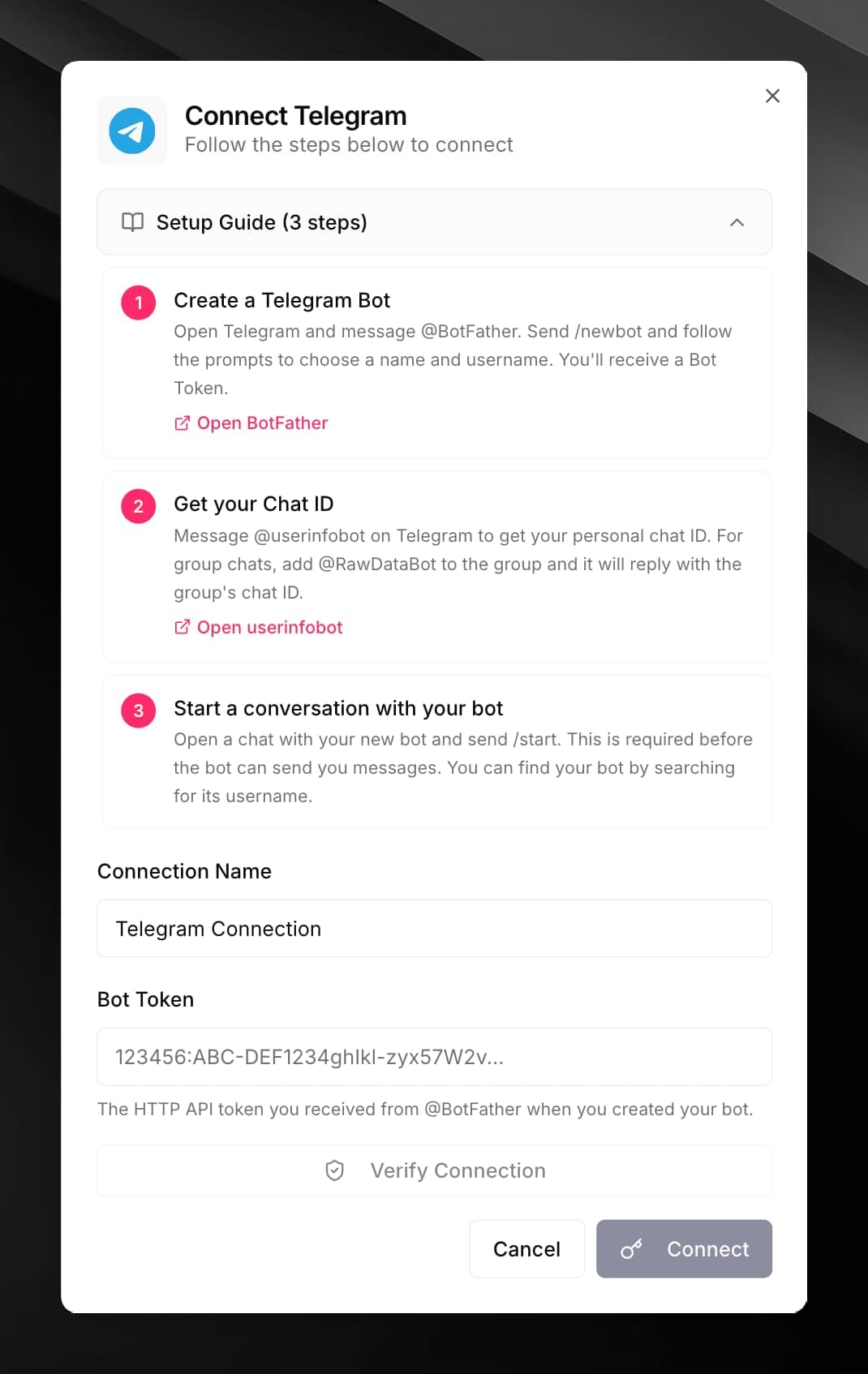
Create a Telegram bot via @BotFather.
Open Telegram and start a chat with @BotFather. Send /newbot, choose a display name and a username (must end in bot). BotFather replies with your Bot Token.
Find the Chat ID you want to send messages to.
- Your own chat ID: message @userinfobot — it replies with your numeric user ID.
- A group or channel: add @RawDataBot to the group; it replies with the group's chat ID (a negative number starting with
-100for supergroups/channels).
Start a conversation with your bot.
Search for your bot by its username and send /start. Telegram requires this before the bot can initiate messages to a user.
Enter the credentials in Mojar.
In your agent, open Integrations, find Telegram, and click its card. Paste the Bot Token, optionally enter a Default Chat ID, give the connection a name, and click Connect.
Click Verify Connection to confirm the bot token works before saving.
Use it in a workflow
Fill in the fields:
- Chat ID — the numeric ID of the user, group, or channel to message, e.g.
{{customer.telegramId}} - Message — the message text (supports
{{variable}}syntax) - Parse mode —
MarkdownV2(default),HTML, or leave blank for plain text - Disable link preview — optional; suppresses Telegram's automatic link unfurl
- Reply to message ID — optional; post the message as a threaded reply to an existing message
MarkdownV2 requires certain characters to be escaped with a backslash (e.g. ., !, -). If your message contains dynamic content from {{variables}}, consider using HTML parse mode instead, which is more forgiving.