

WhatsApp Business
Send WhatsApp messages from your agent's workflows via Meta Business API or Twilio.
The WhatsApp Business connector lets your agent send WhatsApp messages to phone numbers. You choose between two providers: the Meta Business API (direct) or Twilio (which brokers WhatsApp alongside SMS).
What you can do
| Action | Node type | Description |
|---|---|---|
| Send WhatsApp message | Send WhatsApp | Send a text or template message to a WhatsApp number. |
Both providers use {{variable}} template syntax in message fields. The Meta provider additionally supports pre-approved message templates for business-initiated conversations.
Before you start
Choose your provider, then gather the credentials for that path.
| Credential field | Description |
|---|---|
| Provider | Select Meta Business API. |
| Access Token | A permanent access token from your Meta app (EAAGxxx...). |
| Phone Number ID | The numeric ID of the WhatsApp phone number registered to your Meta app (found in the app dashboard under WhatsApp > Getting Started). |
| Credential field | Description |
|---|---|
| Provider | Select Twilio. |
| Account SID | Your Twilio account identifier (ACxxxxxxxxxxxxxxxxxxxxxxxxxxxxxxxx). |
| Auth Token | The secret paired with your Account SID. |
| From Phone Number | Your Twilio WhatsApp-enabled number in E.164 format. |
Connect WhatsApp Business
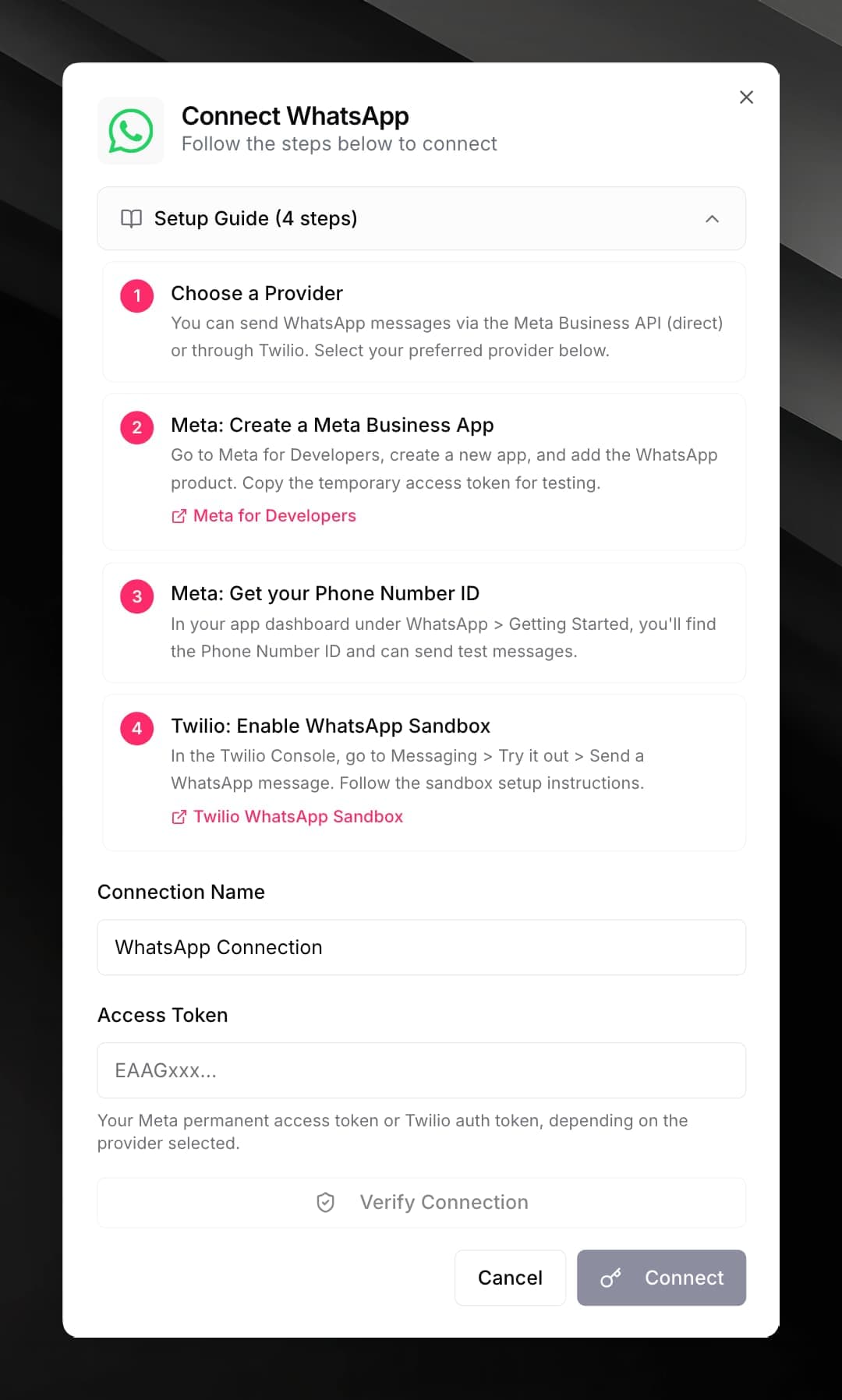
Create a Meta app.
Go to Meta for Developers and create a new app. Add the WhatsApp product to the app.
Get a permanent access token and Phone Number ID.
In the app dashboard, open WhatsApp > Getting Started. Copy the Phone Number ID. For a permanent access token, create a System User in Business Settings > System Users and generate a token with whatsapp_business_messaging permission.
Enter the credentials in Mojar.
In your agent, open Integrations, find WhatsApp Business, and click its card. Select Meta Business API, paste your Access Token and Phone Number ID, give the connection a name, and click Connect.
Enable the WhatsApp Sandbox in Twilio.
In the Twilio Console, go to Messaging > Try it out > Send a WhatsApp message and follow the sandbox setup instructions. For production, apply for a WhatsApp Sender through Twilio.
Gather your Twilio credentials.
Copy your Account SID and Auth Token from the Twilio Console dashboard. Note your WhatsApp-enabled Twilio number.
Enter the credentials in Mojar.
In your agent, open Integrations, find WhatsApp Business, and click its card. Select Twilio, paste your Account SID, Auth Token, and From Phone Number, and click Connect.
Use it in a workflow
Fill in the fields:
- To — recipient WhatsApp number in E.164 format, e.g.
{{customer.phone}} - Message — the message body
- Template Name (Meta only) — the name of an approved Meta message template, if sending a template-based message
- Language Code (Meta only) — template language, e.g.
en_US
Meta requires pre-approved message templates for business-initiated conversations outside the 24-hour customer service window. Free-form text messages work within that window.