

HubSpot
Create, update, and search contacts, deals, companies, and tickets in HubSpot from a workflow.
The HubSpot connector gives your agent full CRM access: create and update contacts, deals, companies, and tickets, or search across any object type — all from a workflow node.
What you can do
| Action | What it does |
|---|---|
| Create contact | Creates a new CRM contact with the properties you specify. |
| Update contact | Updates one or more properties on an existing contact by ID. |
| Get contact | Reads a contact's properties by ID. |
| Search contacts | Finds contacts matching a text query or property filters. |
| Create deal | Creates a new deal record. |
| Update deal | Updates properties on an existing deal by ID. |
| Create ticket | Creates a new HubSpot ticket (CRM object, not support ticket). |
| Update ticket | Updates properties on an existing ticket by ID. |
| Create company | Creates a new company record. |
| Get object / Search | Generic read/search for any CRM object type. |
Properties are passed as JSON and support {{variable}} template syntax for dynamic values.
Before you start
You need:
- A HubSpot account (any paid tier, or a developer sandbox).
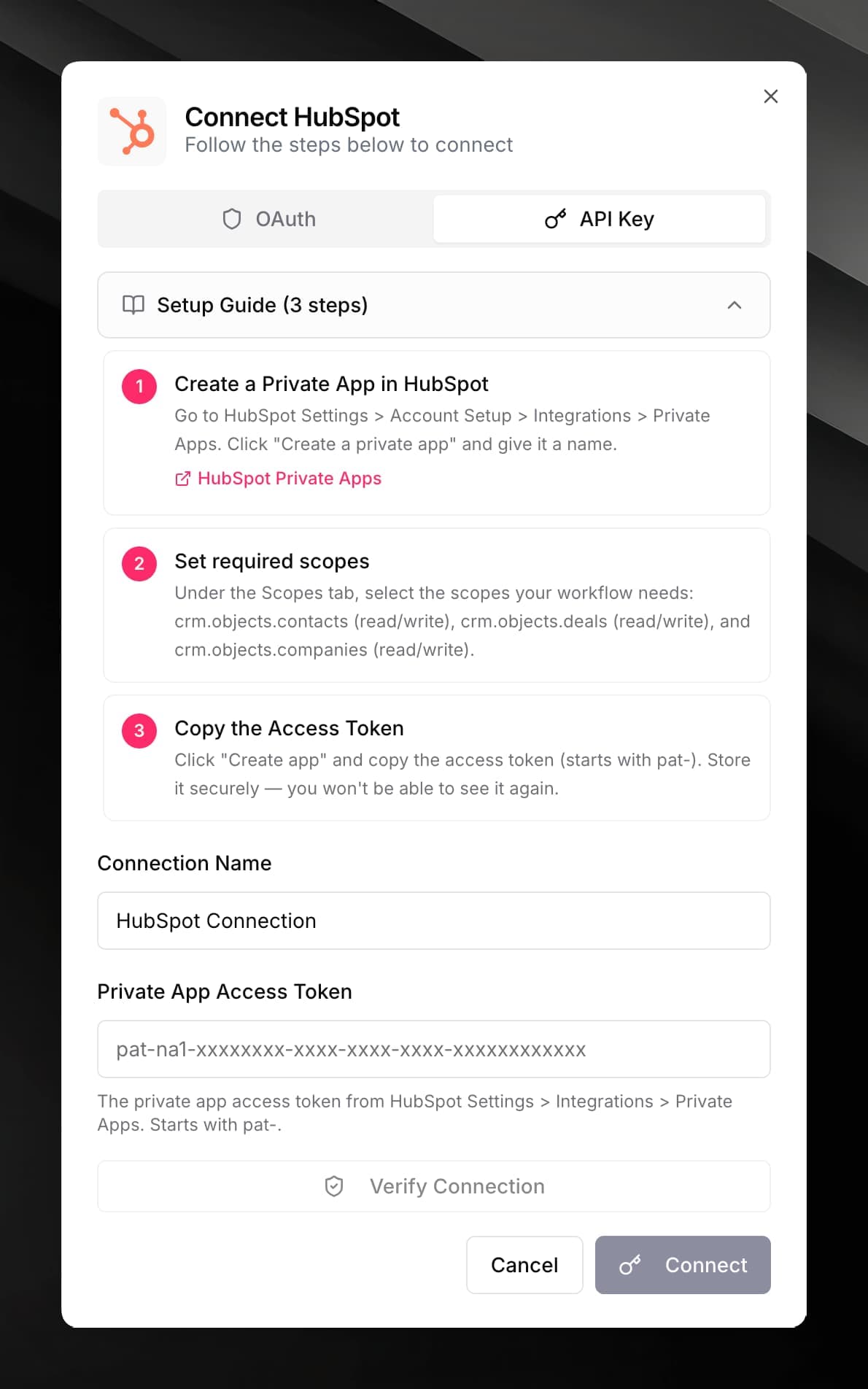
- A Private App access token with the correct CRM scopes.
HubSpot deprecated legacy API keys in 2022. Use a Private App access token (starts with pat-) instead.
To create a Private App:
On the Scopes tab, add the scopes your workflows need:
crm.objects.contacts.readandcrm.objects.contacts.writecrm.objects.deals.readandcrm.objects.deals.writecrm.objects.companies.readandcrm.objects.companies.writecrm.objects.tickets.readandcrm.objects.tickets.write(if using tickets)
Connect HubSpot
Paste your Private App Access Token (pat-na1-...) into the Private App Access Token field.
Use it in a workflow
Set the Properties field as a JSON object matching the HubSpot property names:
{
  "email": "{{lead.email}}",
  "firstname": "{{lead.firstName}}",
  "lastname": "{{lead.lastName}}",
  "phone": "{{lead.phone}}"
}{
"dealname": "{{company.name}} – New Opportunity",
"pipeline": "default",
"dealstage": "appointmentscheduled",
"amount": "{{deal.value}}"
}For update actions, also set the Object ID field to the HubSpot record ID (e.g. captured from an earlier Create node).
For search actions, set a Query string or use the Filters field as a JSON array of HubSpot filter groups.
id and properties you can reference in later nodes.HubSpot property names use snake_case and are different from display labels. For example, the "First name" field is firstname and "Deal stage" is dealstage. Check the HubSpot CRM properties reference for the correct internal names.