

Gmail
Send email from your agent's workflows using a Gmail OAuth account.
The Gmail connector lets your agent send email — including HTML-formatted messages with CC and BCC — from a Gmail address you authorise via OAuth.
What you can do
| Action | Node type | Description |
|---|---|---|
| Send email | Send Email | Compose and send an email to one or more recipients. Supports plain text and HTML body, CC, and BCC. |
Node fields support {{variable}} template syntax, so the recipient address, subject, and body can all be dynamically filled from earlier workflow steps.
Before you start
Gmail uses OAuth 2.0. You need three things from a Google Cloud project:
| Credential field | Description |
|---|---|
| OAuth Client ID | The client ID from your Google Cloud OAuth credentials (your-client-id.apps.googleusercontent.com). |
| OAuth Client Secret | The client secret paired with the above (GOCSPX-...). |
| Refresh Token | A long-lived token obtained by completing the OAuth consent flow for the Gmail send scope (1//0...). |
Optionally, you can set a From Email address. If left blank, the address of the authenticated Google account is used.
Your Mojar workspace admin may have already configured the Google OAuth client at the platform level. In that case you only need to supply a refresh token.
Connect Gmail
Create a Google Cloud project and enable the Gmail API.
Go to the Google Cloud Console. Create a project (or select an existing one) and enable the Gmail API under APIs & Services.
Configure the OAuth consent screen.
Under APIs & Services > OAuth consent screen, fill in the required fields. Choose External for testing or Internal if your organisation uses Google Workspace.
Create OAuth credentials.
Go to APIs & Services > Credentials > Create Credentials > OAuth client ID. Select Web application and add your redirect URI. Copy the Client ID and Client Secret.
Obtain a refresh token.
Use the OAuth 2.0 Playground to authorise the https://www.googleapis.com/auth/gmail.send scope with your credentials. Exchange the authorisation code for tokens and copy the Refresh Token.
Enter the credentials in Mojar.
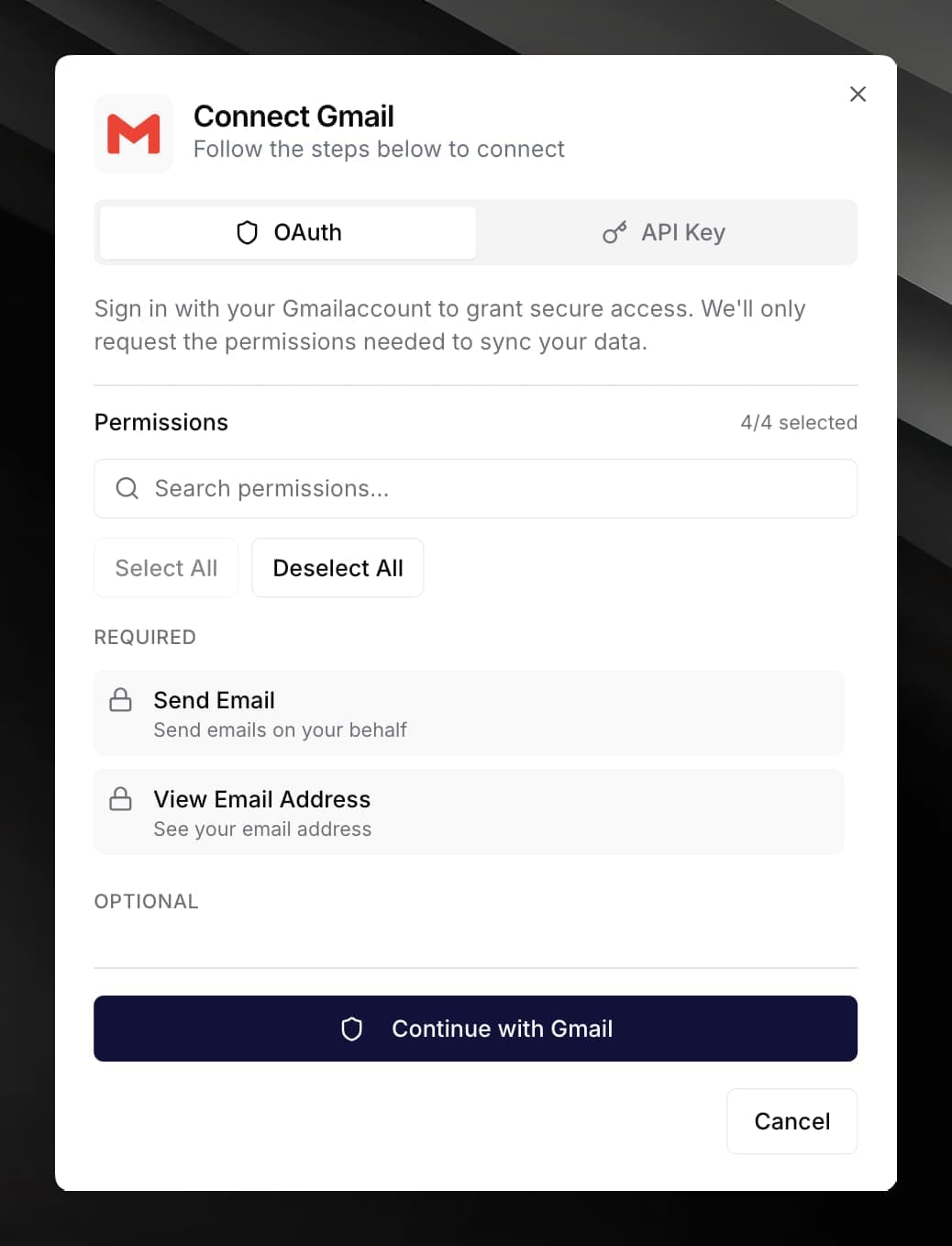
In your agent, open Integrations, find Gmail, and click its card. Paste the OAuth Client ID, OAuth Client Secret, and Refresh Token into the fields, give the connection a name, and click Connect.
Use it in a workflow
Fill in the fields:
- To — recipient address, e.g.
{{customer.email}} - Subject — email subject line
- Body — email body; set Body type to
htmlto use HTML markup - CC / BCC — optional additional recipients