

Review and export
Browse all artifacts across chats in the gallery, then download individual sections as Word documents.
Once sections are drafted, you can review them one at a time on the canvas and download each as a Word document. The Artifacts gallery collects every document produced across all your chats with this agent in one searchable view.
Reviewing sections on the canvas
Open any section artifact on the canvas (via a section kickoff card, the artifact switcher in the canvas header, or the Artifacts gallery) to read the full text.
From the canvas header you can:
- Copy the full content to the clipboard.
- Download as .docx — converts the markdown content to a Word document and saves it to your computer. The filename is derived from the artifact title.
The .docx button is only shown for markdown and plain-text artifacts. Code artifacts do not have a Word export option.

Requesting revisions
If a section needs changes, send a message in the chat describing what to update. The agent creates a new version of the artifact. You can compare versions using the version menu in the canvas header.
The Artifacts gallery
The Artifacts page shows every artifact produced by this agent across all chats — plans, sections, and any other documents.
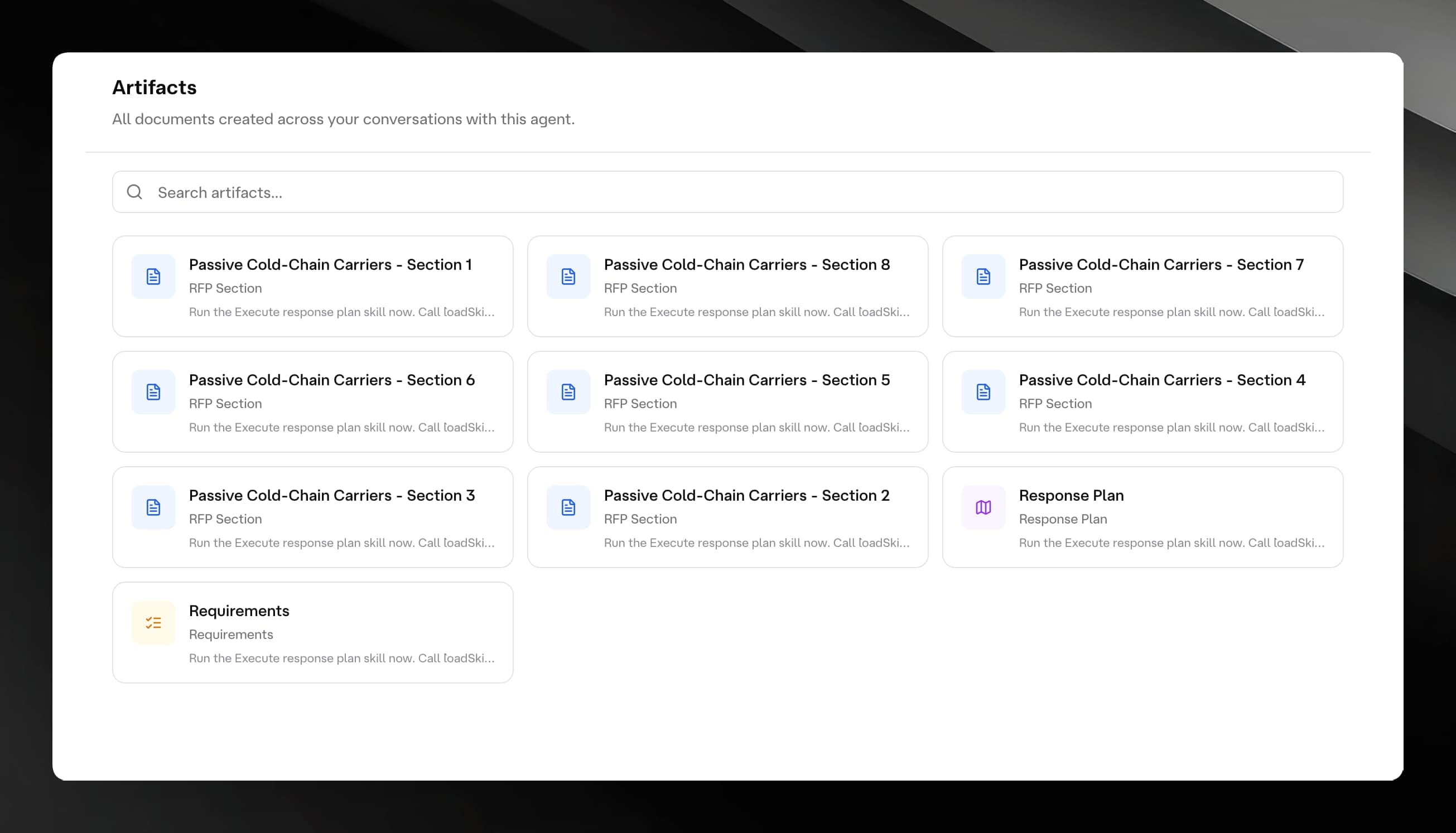
Opening the gallery
In the left sidebar, click the folder icon (labelled Artifacts) to navigate to the Artifacts page. The sidebar item is always visible regardless of which chat is open.
What the gallery shows
Each artifact card displays:
- A colour-coded icon that reflects the artifact type.
- The artifact title.
- The artifact kind and version number (for example, "Markdown · v3").
- The chat the artifact came from, or "Agent-wide" if it was not associated with a specific chat.
- A relative date (for example, "Today", "2d ago").
Searching the gallery
A search bar appears at the top of the gallery when there is at least one artifact. Type part of an artifact title to filter the list. The search is debounced — results update as you type.
Opening an artifact from the gallery
Click any card to open that artifact. If the artifact is associated with a specific chat, Mojar navigates to that chat and opens the artifact on the canvas. If there is no associated chat, the canvas opens directly.
Pagination
The gallery shows up to 20 artifacts per page. Use the pagination controls at the bottom to move between pages.
Exporting the full response
There is no single-click "export all sections" action in the current UI. To assemble the final response document:
- Open each section artifact in the canvas.
- Download it as a
.docxusing the Download (.docx) button. - Combine the downloaded files in your word processor.
Alternatively, use the Copy button on each section artifact to copy the markdown text, then paste and assemble in your preferred editor.