

Starting an RFP project
Upload your RFP, let the agent generate a numbered plan, and launch section drafting.
Every RFP project starts with the source RFP. You upload the document in chat; the agent reads the requirements, produces a response plan as a numbered artifact, and you then trigger section drafting from the plan itself.
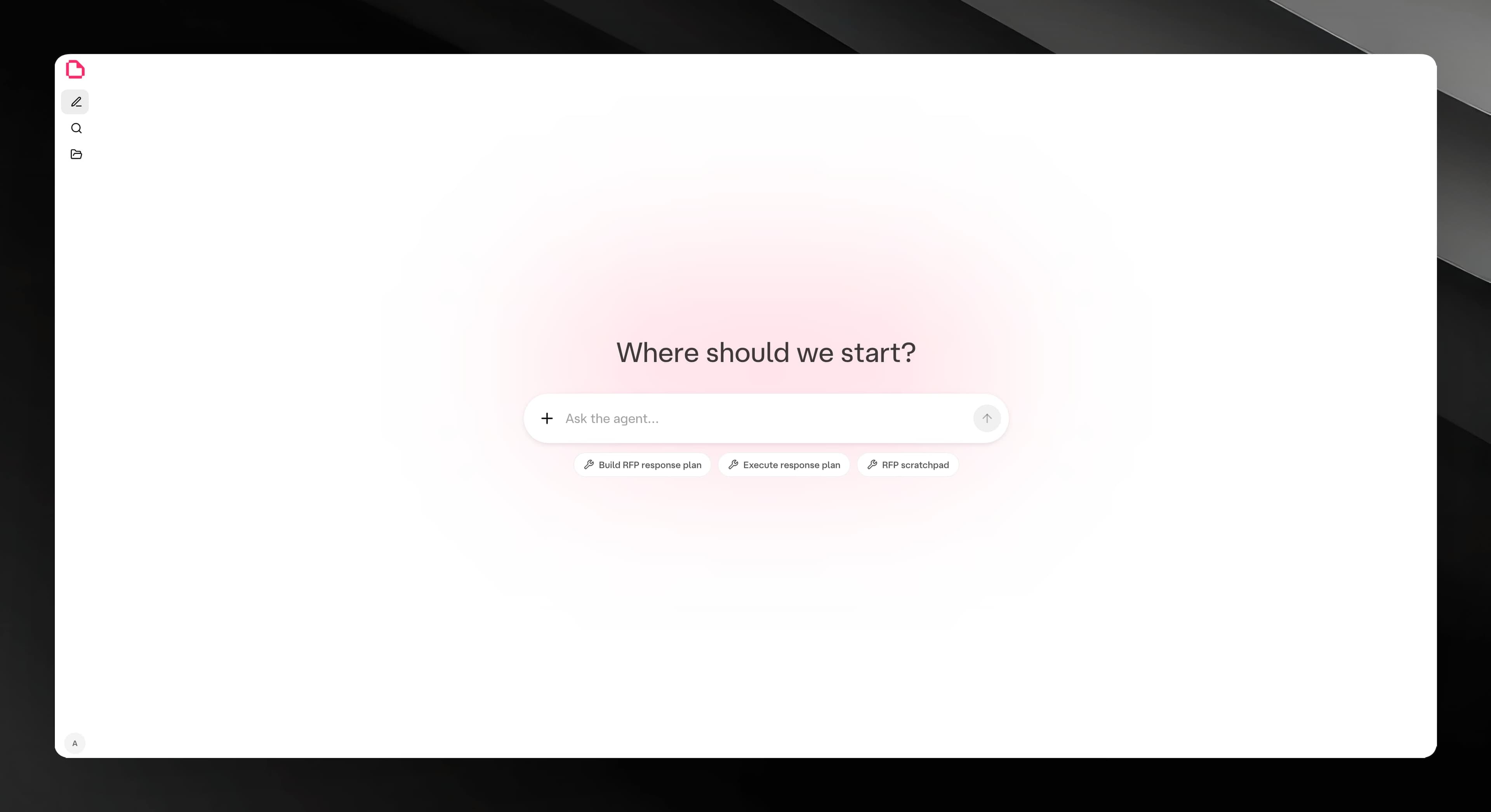
Step 1 — Open a Pestle chat
Navigate to your Pestle agent. The welcome screen shows a large input with the heading Where should we start? and optional quick-action chips below it.
Upload the RFP using the paperclip in the input area. The original RFP document gives the agent direct access to the client, scope, requirements, constraints, deadlines, and submission instructions it needs to build an accurate plan.
Press Enter or click the send button. The agent reads the uploaded RFP and the knowledge base attached to this agent before replying.
You can add a short note with the upload if there is extra context the RFP does not contain, such as internal preferences, known win themes, page limits from a separate email, or a specific tone to use.
Step 2 — Review the generated plan
The agent responds with a response plan artifact. The plan lists numbered sections — for example, Section 1, Section 2, Section 2.1 — each covering a distinct part of the response.
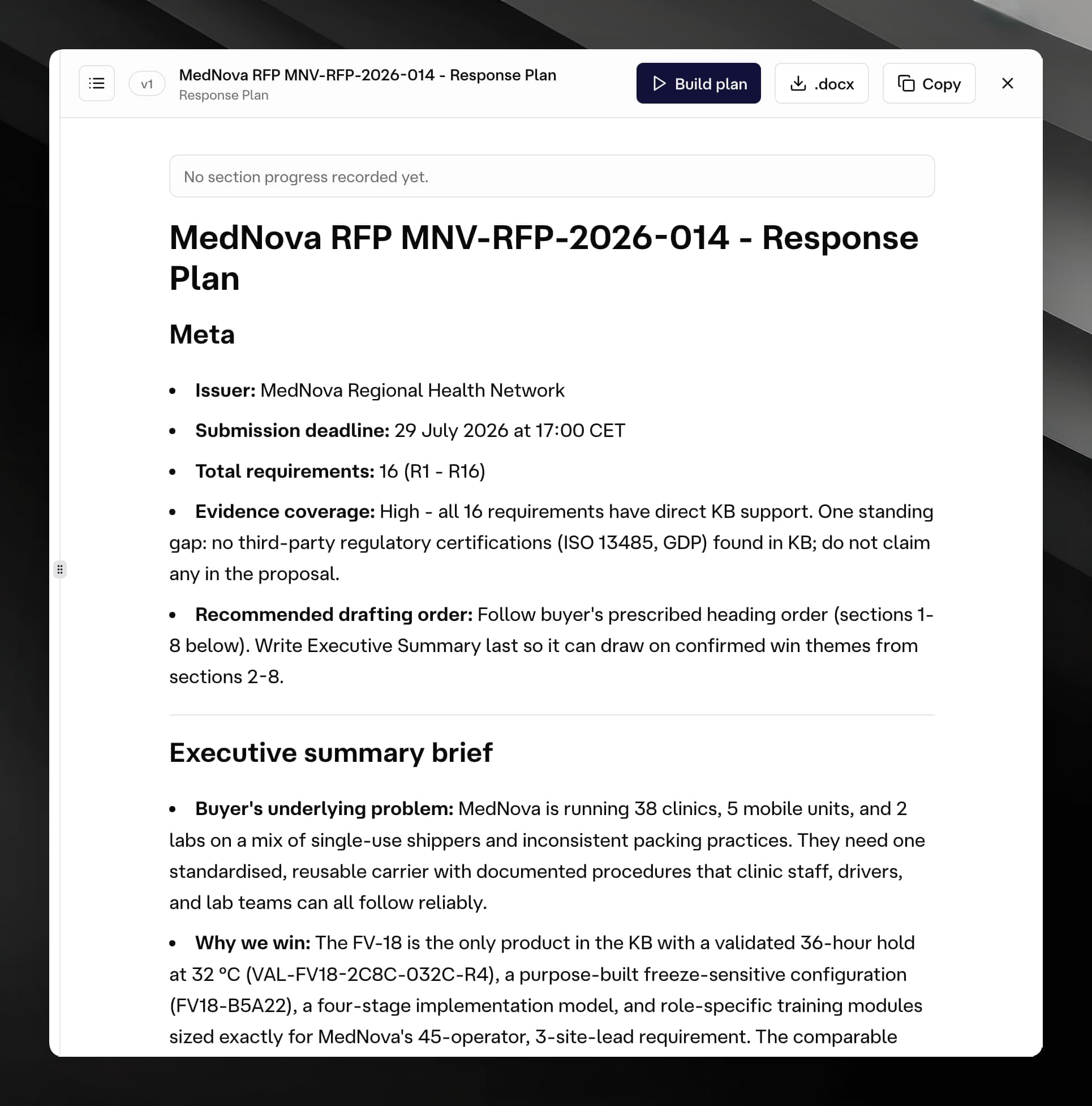
The plan appears in the canvas on the right side of the screen. You can read through the full plan, copy it, or download it as a .docx file.
If the plan is missing sections or the scope is wrong, send a follow-up message in the chat. Ask the agent to add, remove, or reorder sections. The agent will update the plan artifact in place (it creates a new version).
Step 3 — Launch the Build plan dialog
Once the plan looks correct, click Build plan in the canvas header. A dialog opens listing every section the agent will draft.
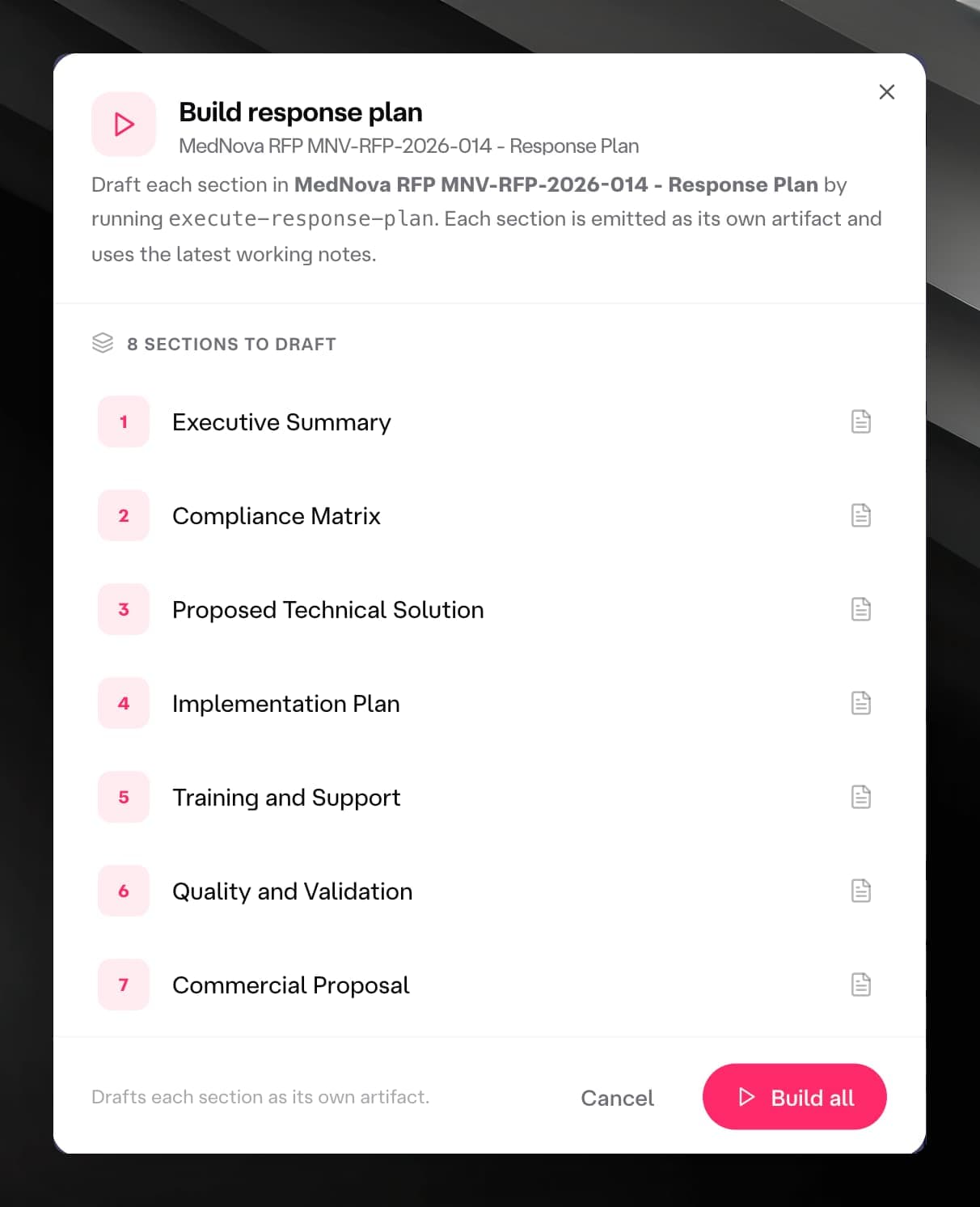
The dialog has three possible actions depending on plan state:
| Button label | When it appears |
|---|---|
| Build all | No sections have been drafted yet. |
| Resume | Some sections are already drafted (progress was interrupted). |
| Run again | All sections are done; you want to regenerate from scratch. |
Click the action button to confirm. The dialog closes and the agent starts drafting sections one by one.
The Build plan button is disabled while the agent is working. If the agent is mid-response when you open the plan artifact, the button shows a tooltip explaining that it will be available once the current turn finishes.
Steering the agent during a chat
You can send messages at any point — before starting the plan, between sections, or after all sections are done. The chat input is always available at the bottom of the left panel. Use it to:
- Ask the agent to clarify a requirement before it starts a section.
- Redirect tone or emphasis for upcoming sections.
- Ask for a revised version of a section after it is drafted.