

Sections and the canvas
How sections are drafted, what the canvas shows, and how to review each section before continuing.
After you trigger Build plan, the agent drafts sections one at a time. Each section appears on the canvas as it is being written, then a kickoff card in the chat prompts you to continue to the next section.
The canvas
The canvas occupies the right half of the Pestle layout. It shows one artifact at a time.
While a section is streaming
As the agent writes a section, the canvas shows the content in real time. The canvas header displays a Streaming indicator in amber. You cannot interact with the section (copy, download) until streaming finishes and the artifact is saved.
The chat panel on the left shows a Building plan progress card that collapses to a summary. Expand it to see the status of every section: Queued, Researching, Drafting, Done, Skipped, or Blocked.
After a section is saved
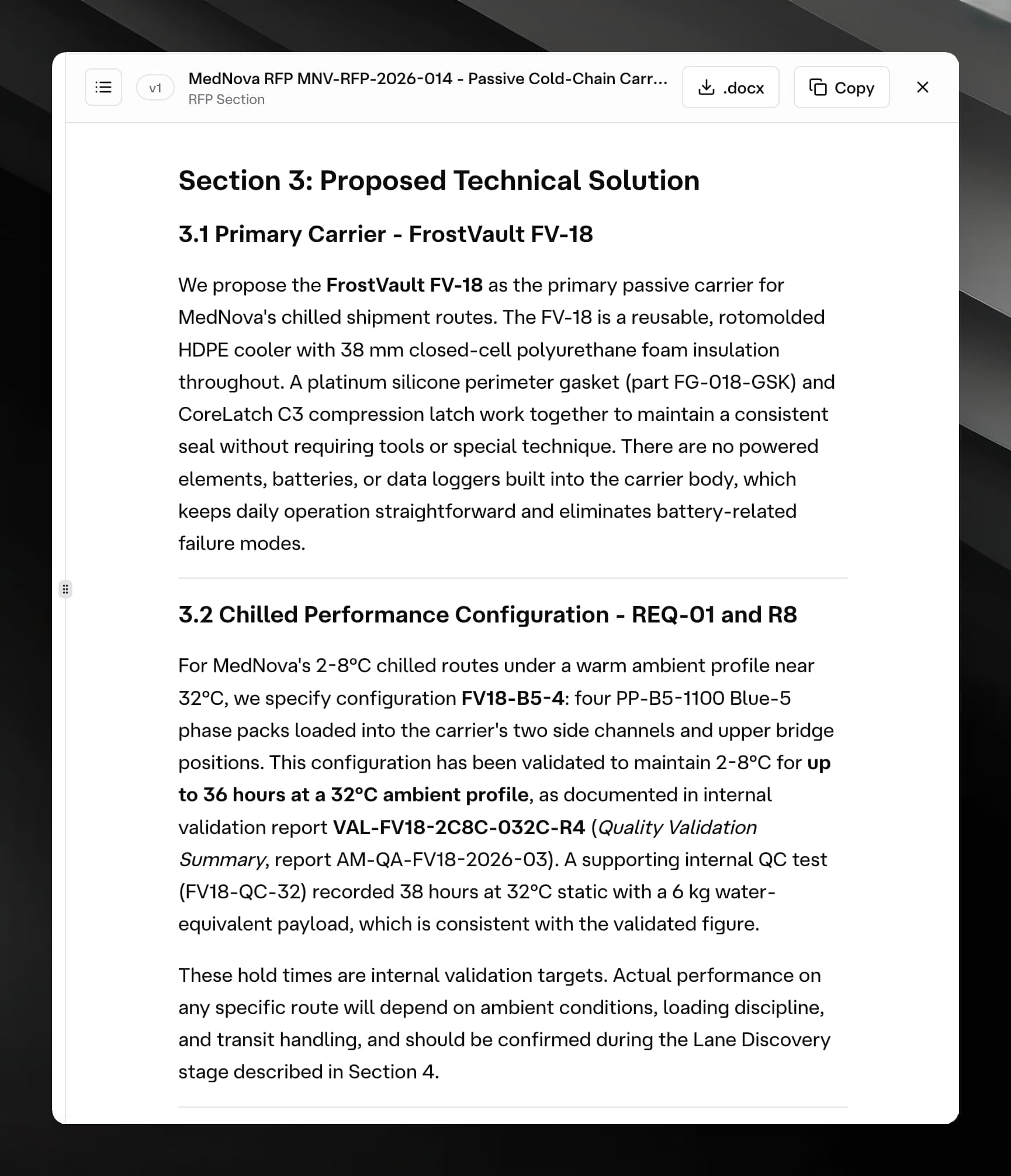
Once the agent finishes a section the canvas header updates to show:
- The artifact title (for example, "Section 1: Executive Summary").
- A version badge — v1 for a freshly drafted section, higher numbers if the section was revised.
- A Copy button to copy the full text to the clipboard.
- A Download (.docx) button to save the section as a Word document (available for markdown and plain-text artifacts).

Switching between artifacts
The canvas header has an artifact switcher (the icon to the left of the version badge). Click it to open a popover listing all artifacts produced in this chat. Select any artifact to load it in the canvas without leaving the current chat.
Viewing older versions
If an artifact has more than one version, the version badge becomes a menu. Click it to see a list of all versions in descending order, then select a version to view its content. The menu labels the latest version explicitly.
Section kickoff cards
After each section is drafted, a kickoff card appears in the chat conversation. The card frames what comes next in the plan.
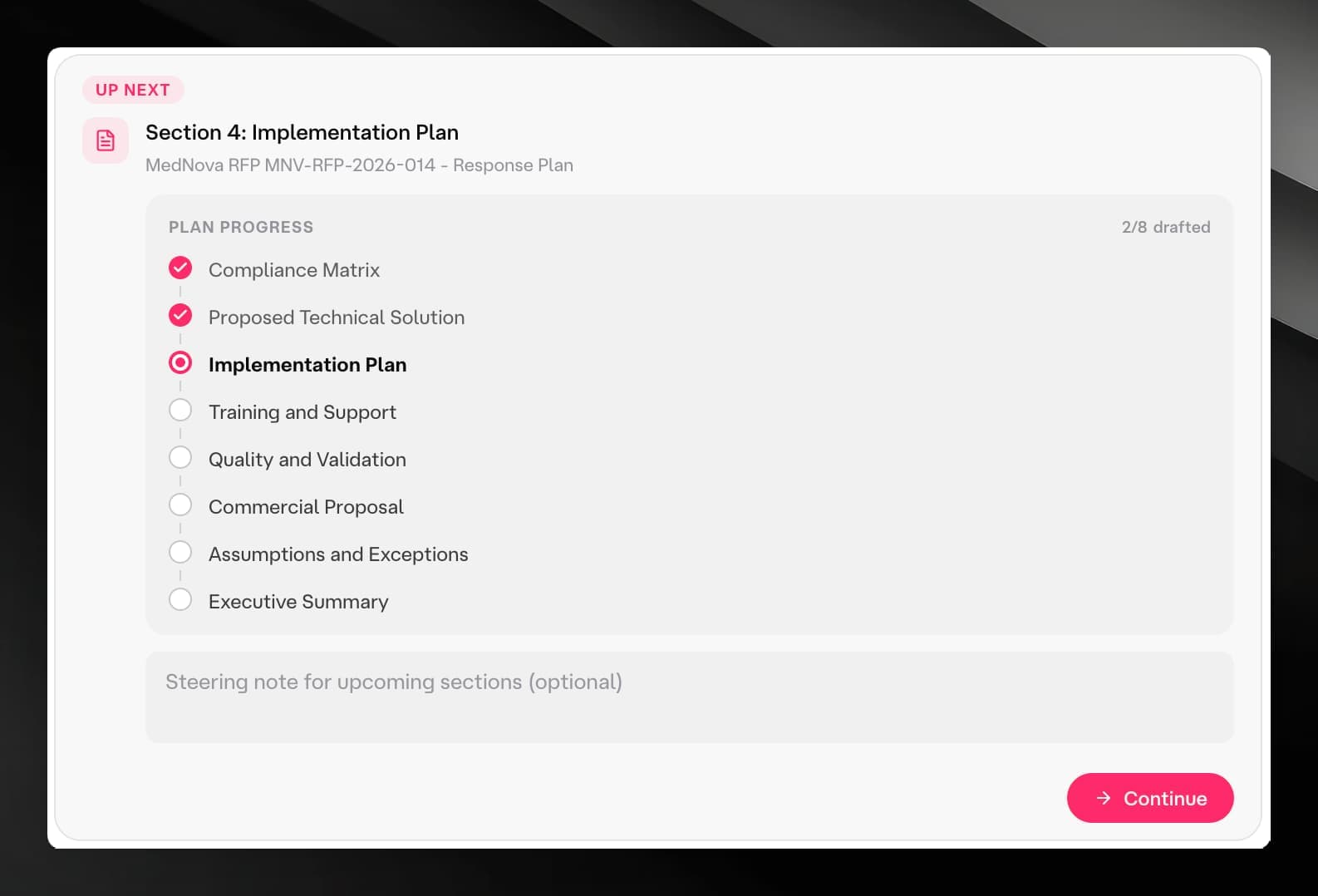
The card contains:
- An eyebrow badge — "Up next" when there is a next section, or "All sections drafted" when the plan is complete.
- The heading of the next section to be drafted.
- A plan progress timeline showing every section with its current status. Completed sections show a filled checkmark; the next section shows a ring with a dot; future sections show an empty ring.
- A Steering note text area (optional). Type any guidance you want the agent to incorporate into the upcoming section — for example, emphasis on a particular capability, or a specific tone.
- A Continue button.
Continuing to the next section
Read the kickoff card to confirm the plan is on track.
Optionally type a steering note in the text area.
Click Continue. The card shows a green "Continuing" status and becomes inactive. The agent starts drafting the next section.
Once you click Continue, the card cannot be re-submitted. If you need to change course after clicking, send a follow-up message in the chat input explaining what to adjust.
Plan progress on the canvas
When a response plan artifact is open in the canvas, a plan progress panel appears above the plan content. The panel shows:
- A count of drafted sections (for example, 2/5 sections drafted).
- The current or next section.
- An expandable list of all sections with their individual statuses.
The panel refreshes automatically every few seconds while the agent is working.
Editing a section
The canvas is a read-only viewer — you cannot type directly into it. To revise a section:
- Note the section title or artifact UUID.
- Send a message in the chat describing what to change: "Revise Section 2 to lead with our delivery timeline."
- The agent drafts an updated version of the artifact. When it finishes, the canvas version badge increments (for example, from v1 to v2).
You can browse back to any earlier version at any time using the version menu in the canvas header.